 Discover Windows
Discover Windows
Discover Windows
4 MIN READ
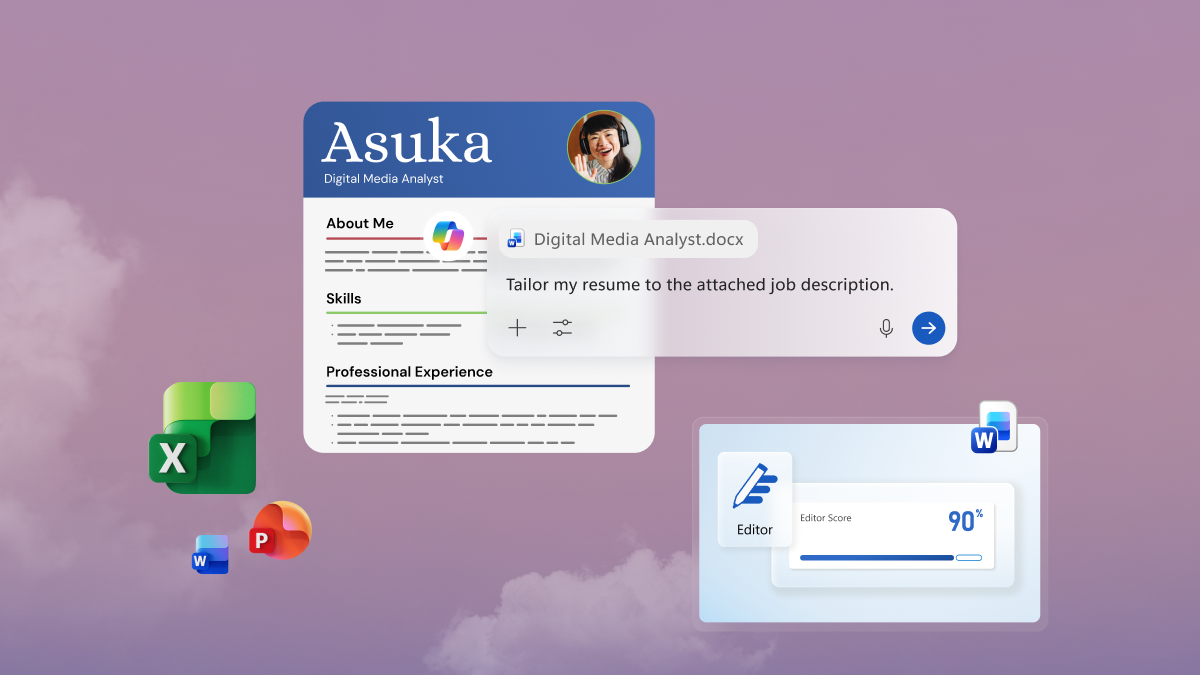
Boost productivity on Windows 11 with Copilot in Word, Excel, PowerPoint, and Outlook.
4 MIN READ
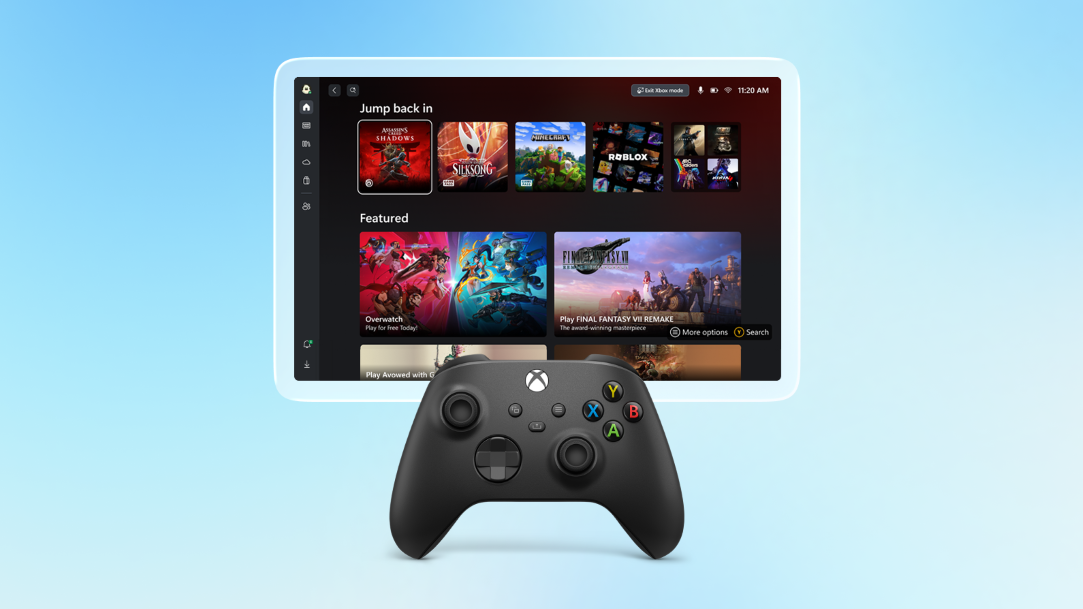
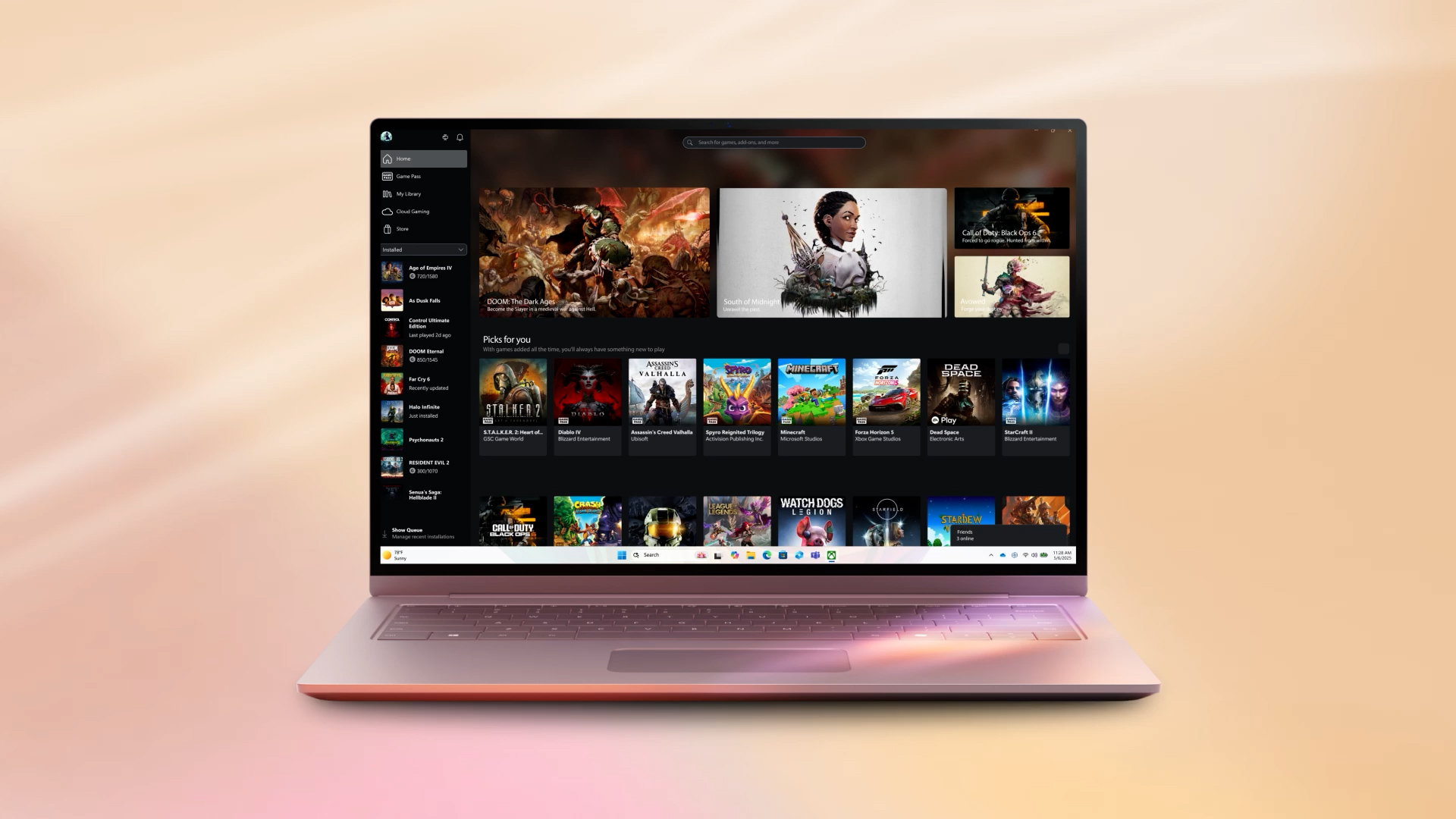
Explore more ways to play on Windows 11 and learn about gaming features that enhance your experience.
3 MIN READ
Windows 11 for students is bundled with a year of top apps, storage, and gaming.

3 MIN READ
There's a Windows 11 device for everyone. Find the one that fits your lifestyle and budget.

3 MIN READ
Keep text, links, and images at your fingertips with Windows 11 clipboard history.
4 MIN READ
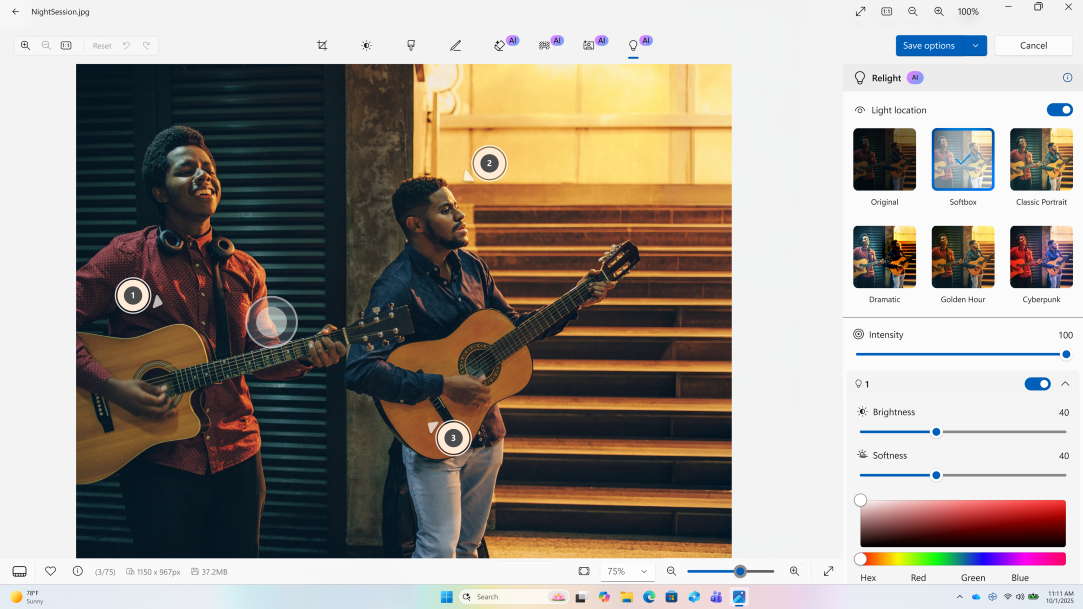
Handle everyday photo and video fixes in Windows 11 using built-in apps.
3 MIN READ
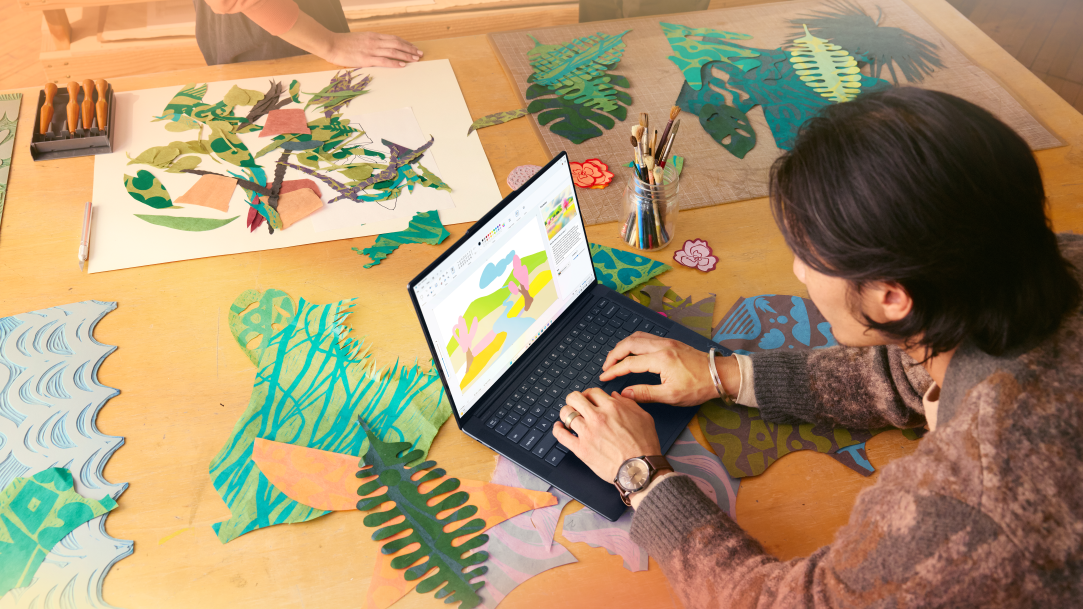
Unlock creativity with Windows built‑in drawing tools, from classic tools to modern AI features.

3 MIN READ
Speed up everyday tasks with Windows 11’s most useful shortcuts for PC users.

3 MIN READ
Get real help on Windows 11 from a real person you know and trust by using Quick Assist.

3 MIN READ
Boost productivity with Windows 11 widgets that keep essential updates front and center.
3 MIN READ
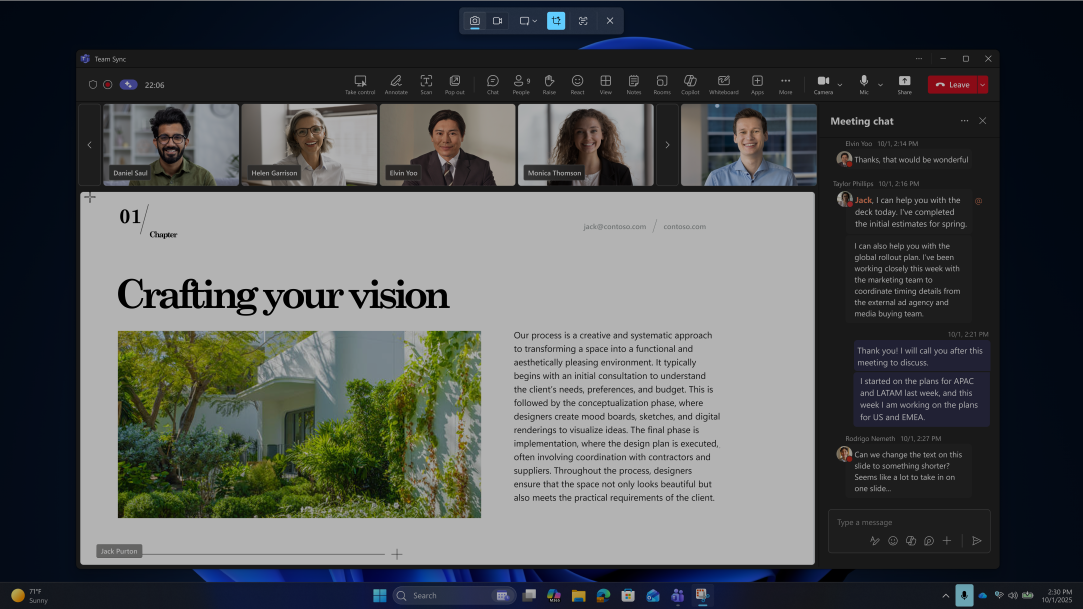
Your guide to quick, clean screen captures and recordings using Windows Snipping Tool.
3 MIN READ
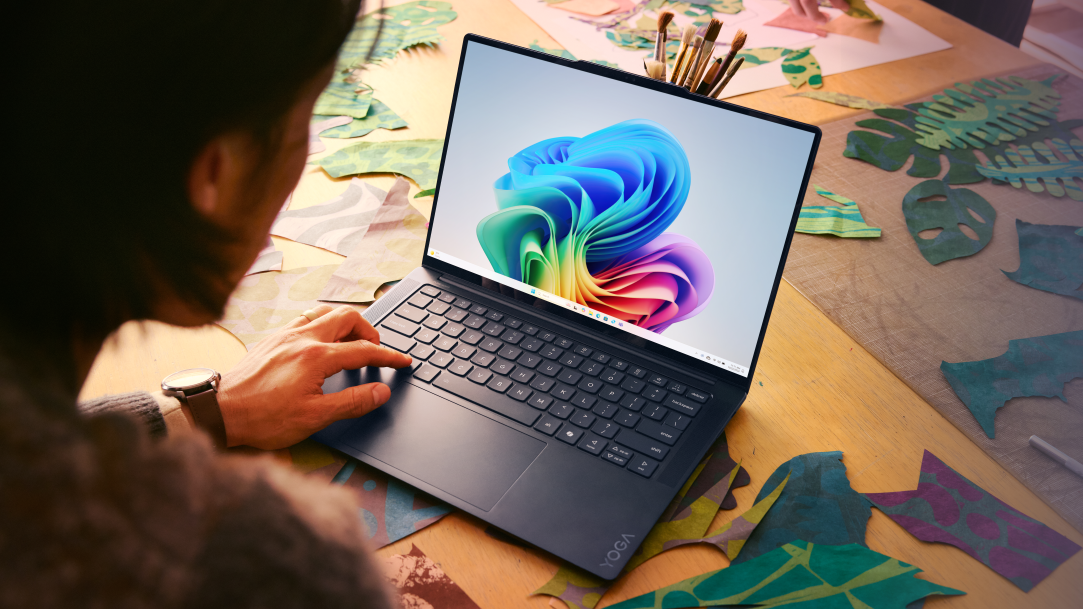
Learn simple steps for PC data migration and move files to your new computer with confidence.

4 MIN READ
Explore the best productivity apps in Windows to help you study smarter, not harder.

3 MIN READ
Learn the key AI features, hardware, and Windows tools to look for in a 2026 AI PC.
4 MIN READ
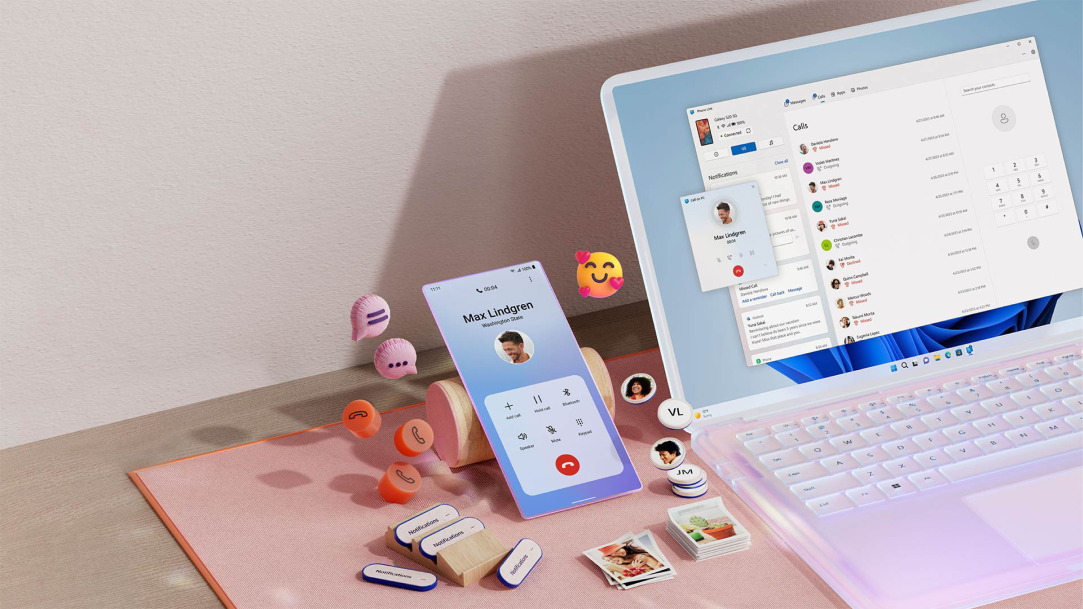
Sync your phone and PC to grab photos, answer calls, and respond to messages right from your desk.
4 MIN READ
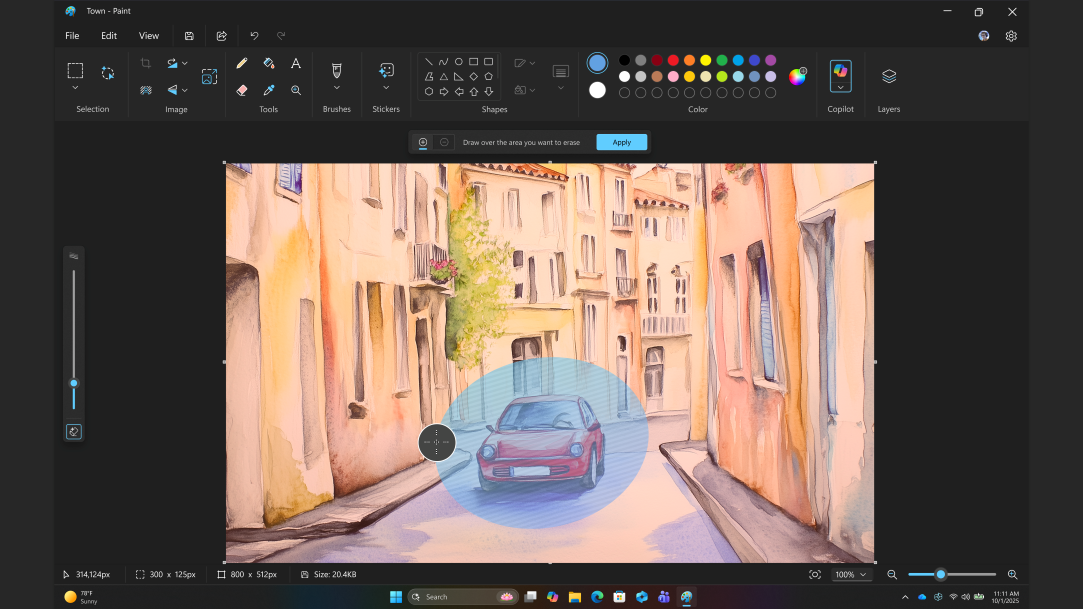
Bring ideas to life with familiar Paint tools enhanced by modern AI features.
4 MIN READ
A simple guide to how your computer works, and why Windows 11 takes it to the next level.
4 MIN READ
How to choose the best PC for your budget, your workflow, and your everyday life.
5 MIN READ
Why checking PC specs matters for gaming, upgrades, and troubleshooting.
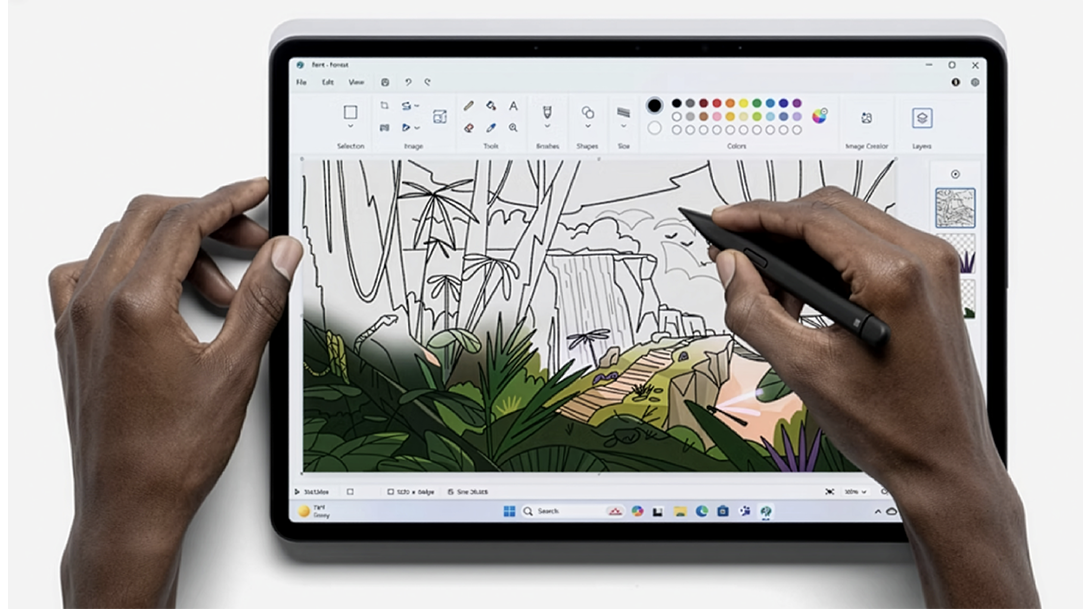
4 MIN READ
Discover how Microsoft Paint turns Windows 11 devices into a creative playground.
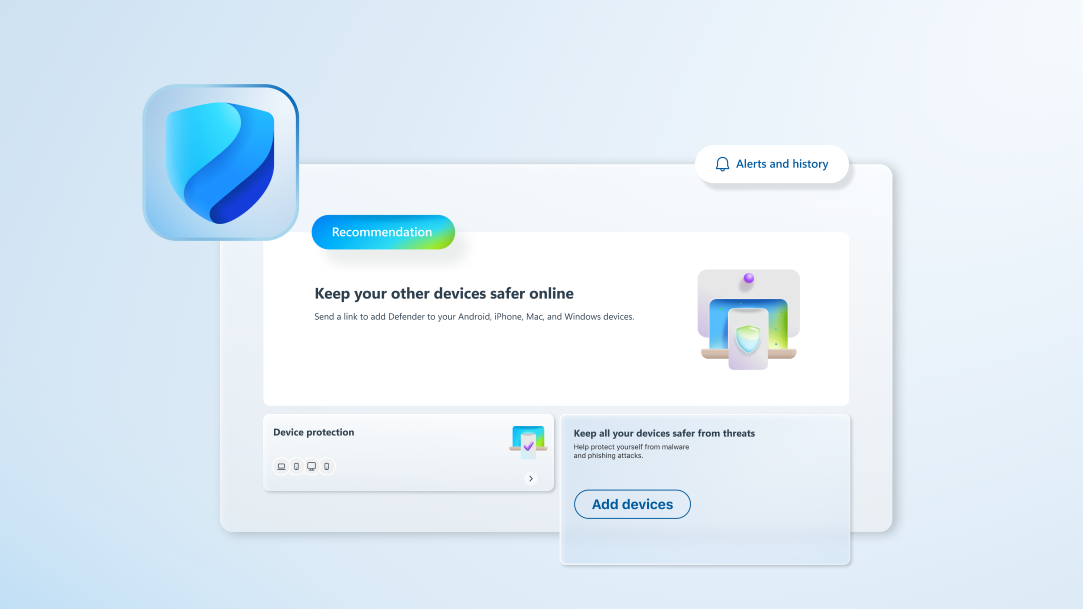
5 MIN READ
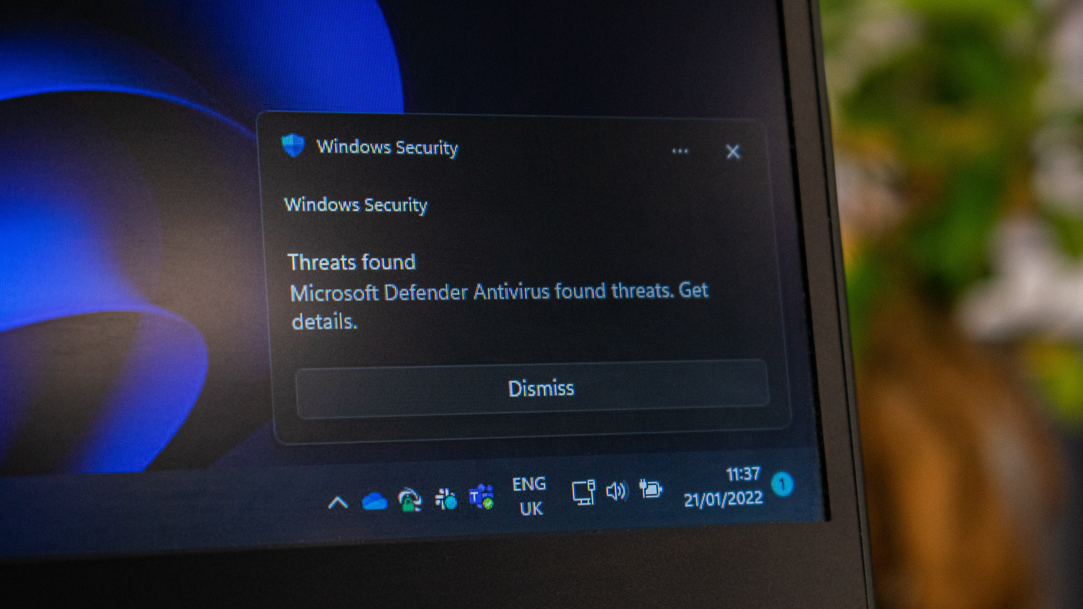
A friendly guide to understanding antivirus protection on Windows 11.
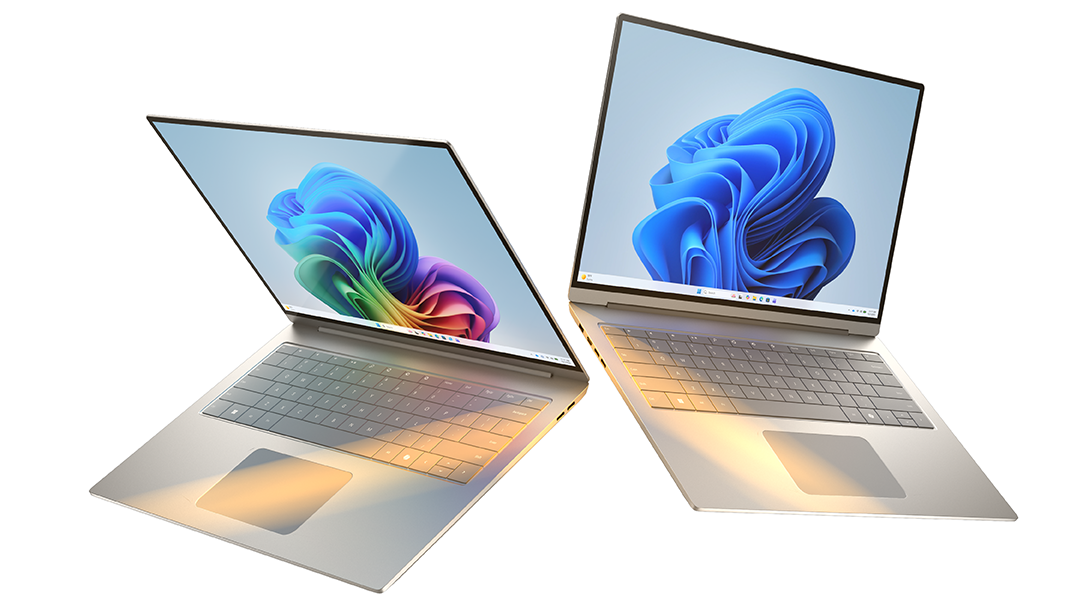
4 MIN READ
Smarter, faster, and built for AI, Copilot+ PCs take Windows PCs to a whole new level.
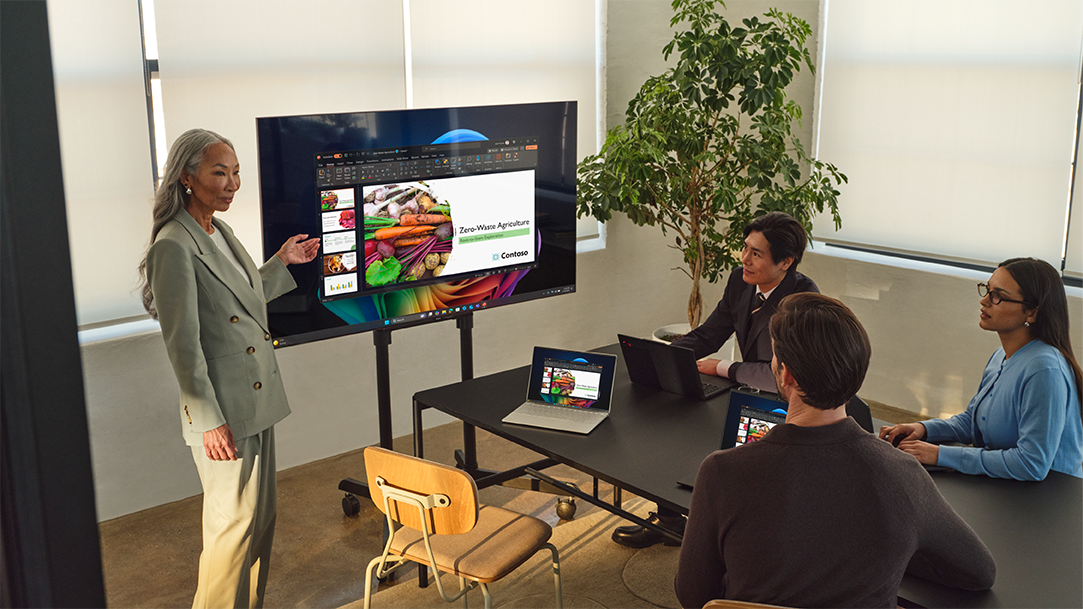
4 MIN READ
Connect your PC to a TV wirelessly. Windows screen sharing is fast, easy, and cable-free.
3 MIN READ
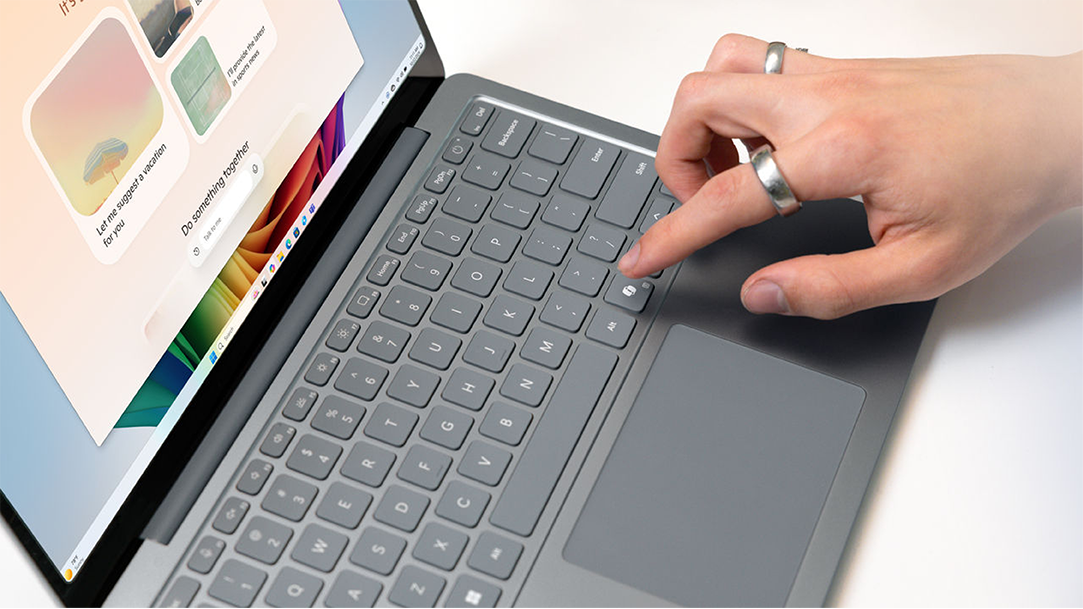
Meet the Copilot key: the newest shortcut on your Windows keyboard.
3 MIN READ
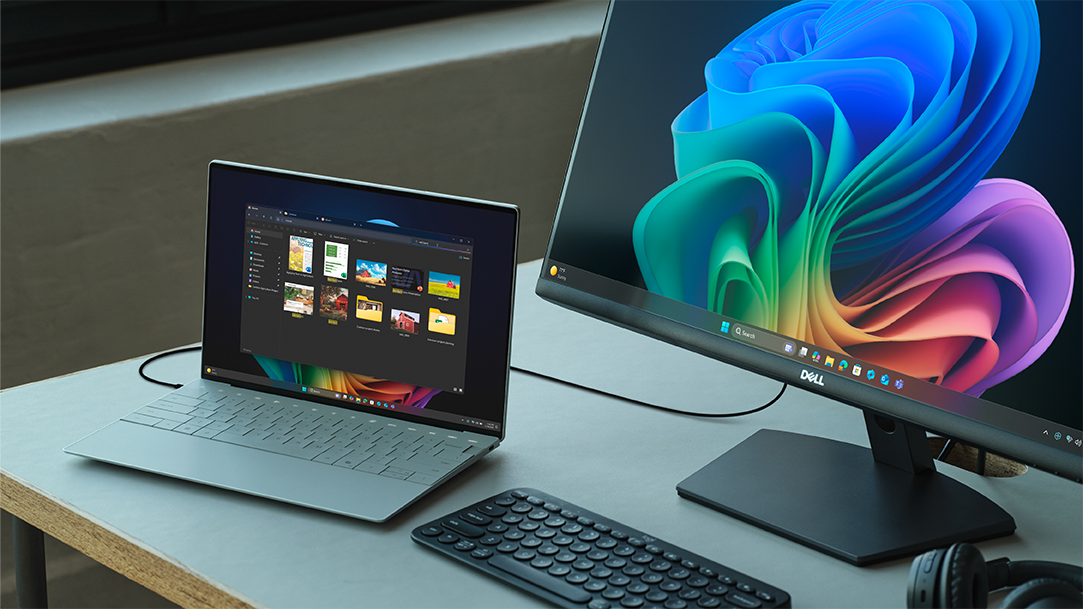
Learn how a dual monitor setup with your Windows laptop boosts productivity for work, study, and creativity.

3 MIN READ
What is cloud storage? Learn how Windows and OneDrive keep your files secure, flexible, and accessible anywhere.
3 MIN READ
Discover how operating systems (OS) keep your PC organized, safe, and fun to use.
3 MIN READ
Running low on disk space? Discover how to clear temporary files.
3 MIN READ
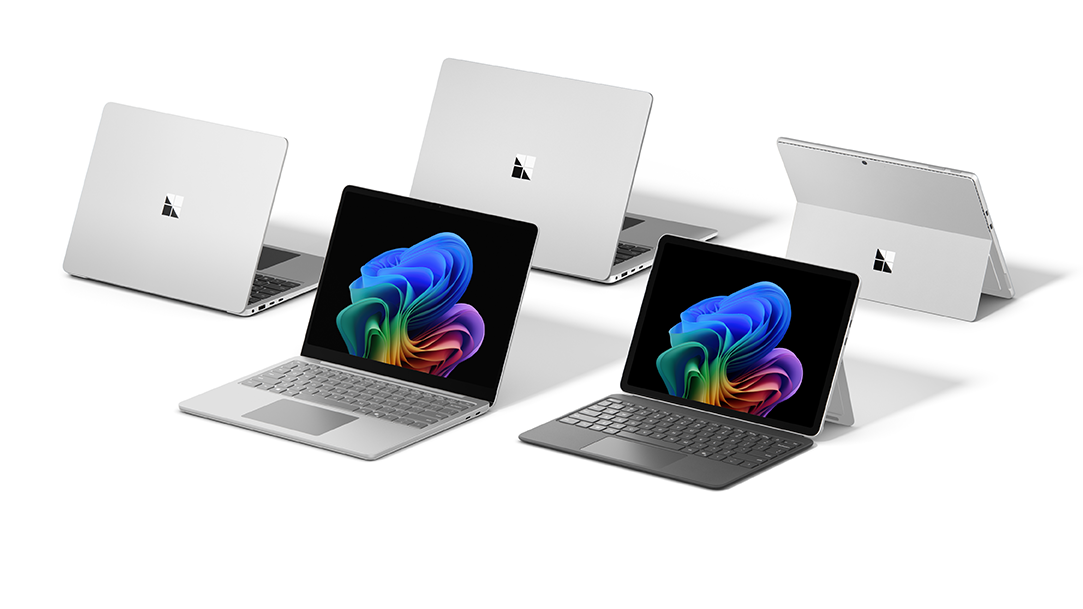
A guide to AI PCs that deliver speed, battery life, and AI features you’ll actually use.
3 MIN READ
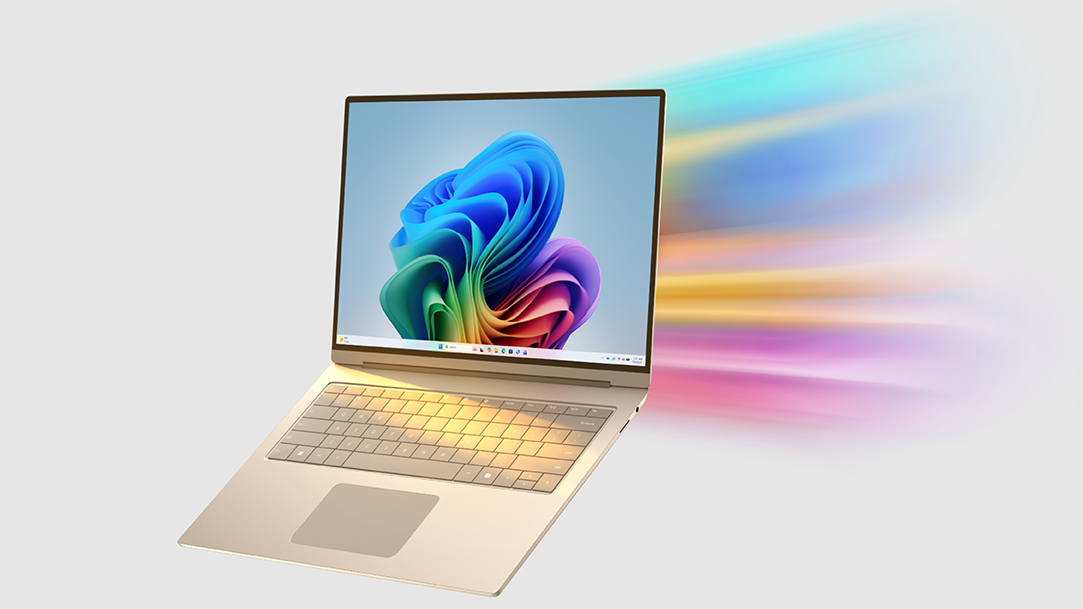
Find it, create it, or remix it—these three Copilot+ PC features make everyday tasks easier and faster.
4 MIN READ
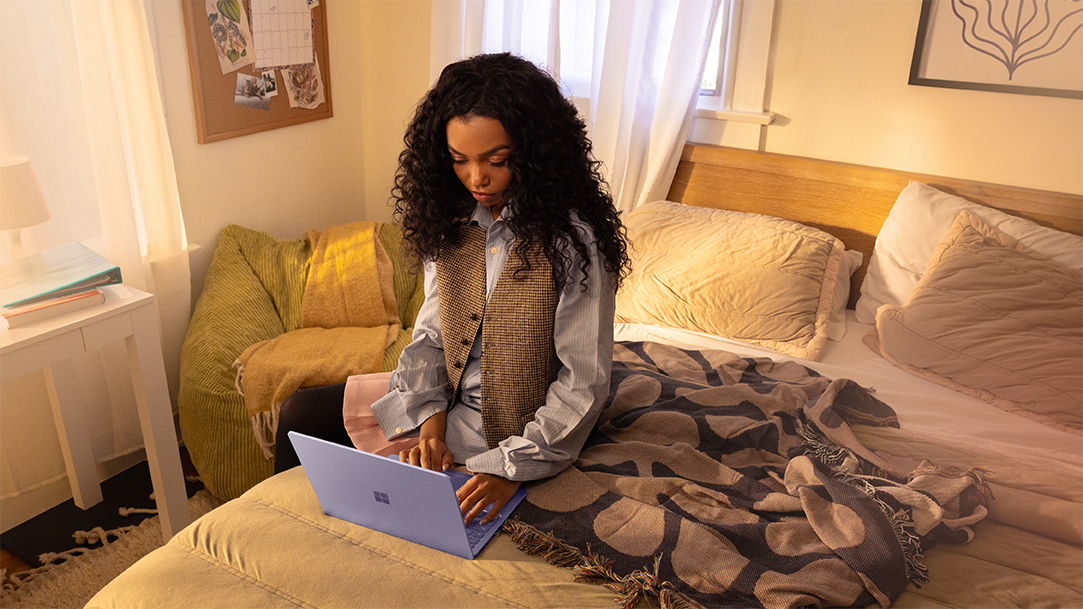
Start your day stronger: how Copilot+ PCs make mornings calmer, smarter, and more productive.

4 MIN READ
Power, personalization, and play-anywhere freedom lets you explore the next frontier of gaming.

4 MIN READ
Whatever you're working on or thinking through, Copilot on Windows 11 gives you an alternative to typing.
4 MIN READ
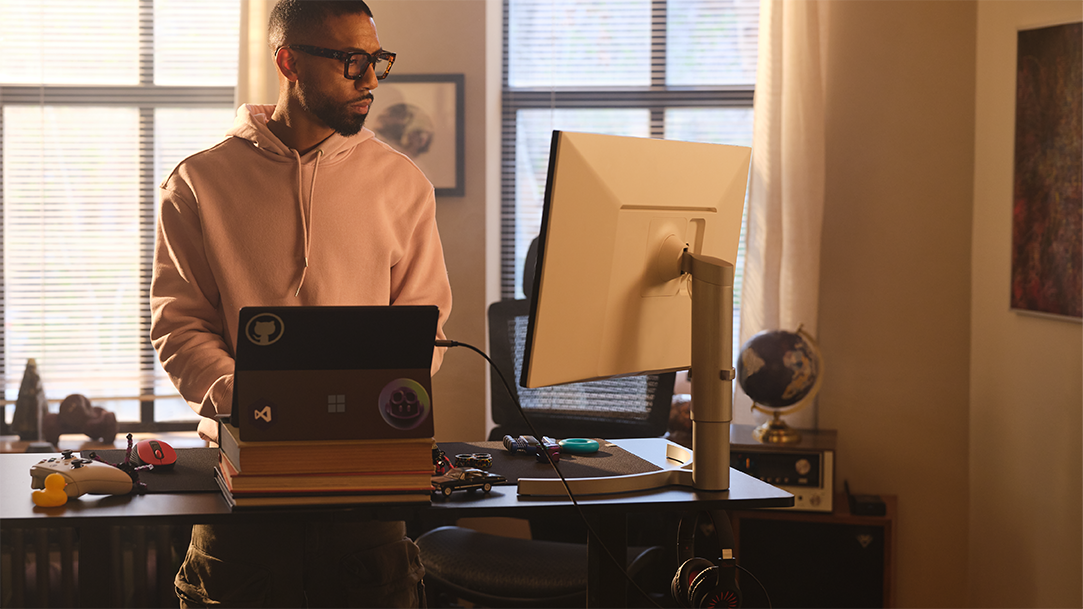
Learn how Copilot+ PCs help job seekers build resumes, prep for interviews, and get hired.
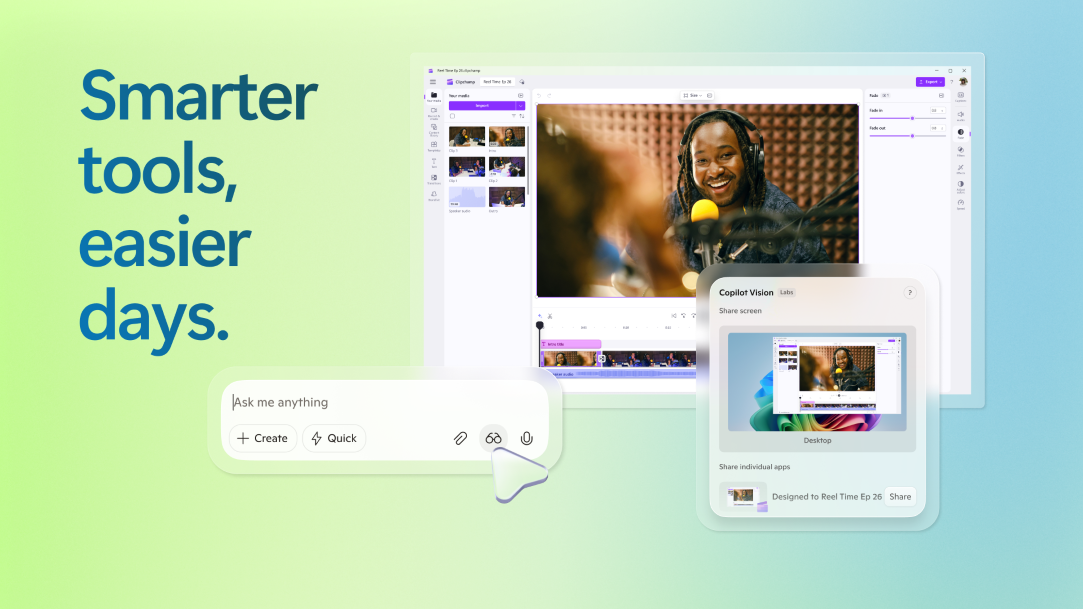
4 MIN READ
See how Copilot+ PCs turn smart accessibility into everyday support.

5 MIN READ
Ready to launch your side hustle? Here’s how Copilot+ PCs help you start, scale, and earn, on your own terms.
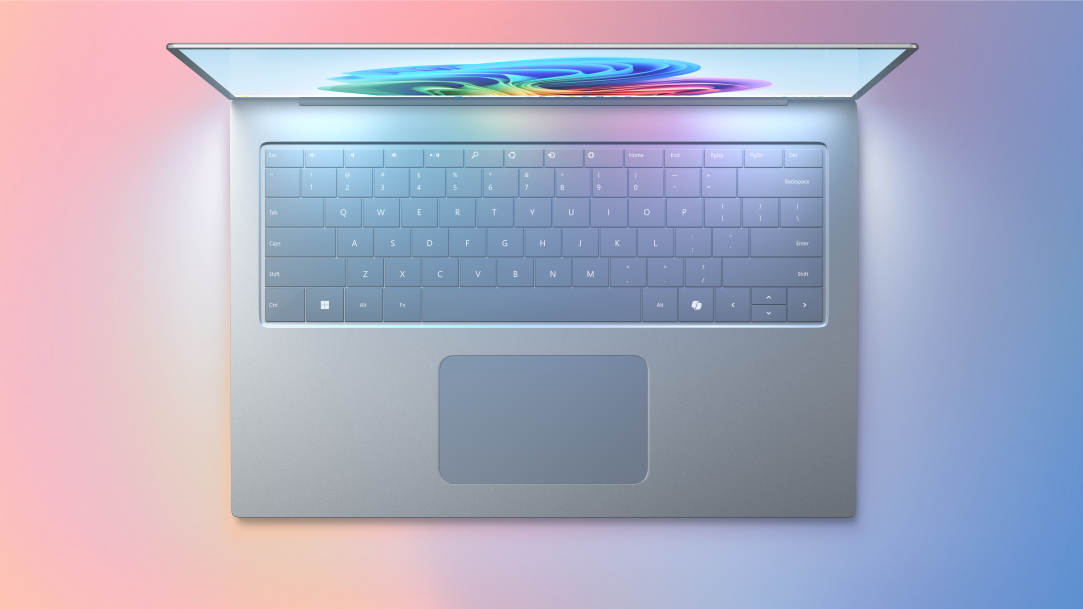
3 MIN READ
What to look for in a laptop built to match your creative energy.

4 MIN READ
Fun-to-use tips to help you focus, set limits, and scroll a little less.
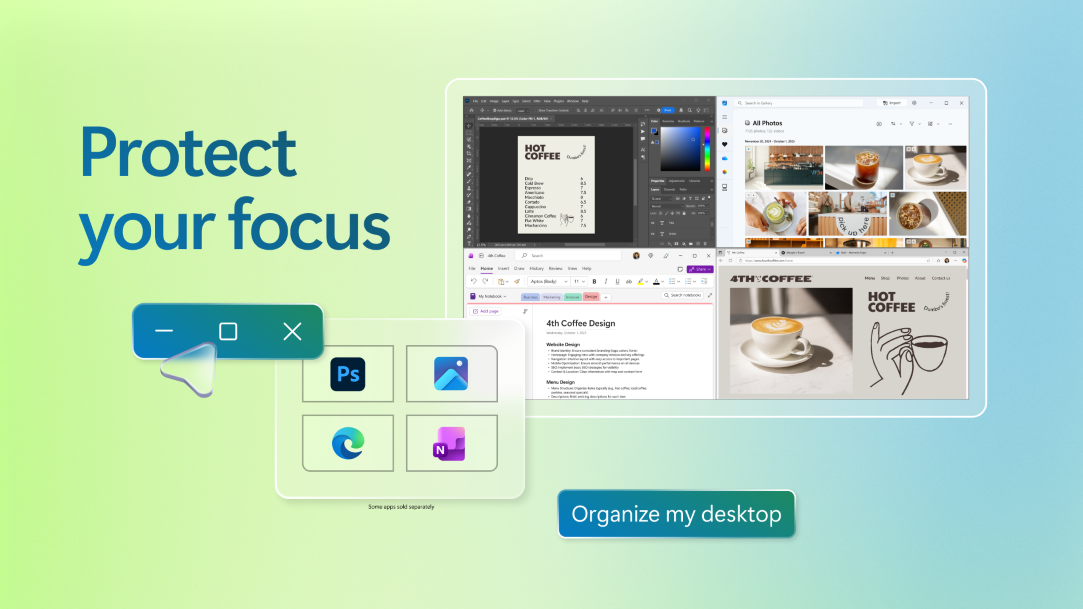
3 MIN READ
From blank page to masterpiece—here’s how to let Copilot+ PC tools do the heavy lifting.

3 MIN READ
Learn how to add fresh fonts and boost creativity with Copilot+ PC tools.

3 MIN READ
Smart tools to help you navigate, read, listen, and stay connected—your way.

3 MIN READ
Learn how to save big with student deals, bundles, and cashback tips.
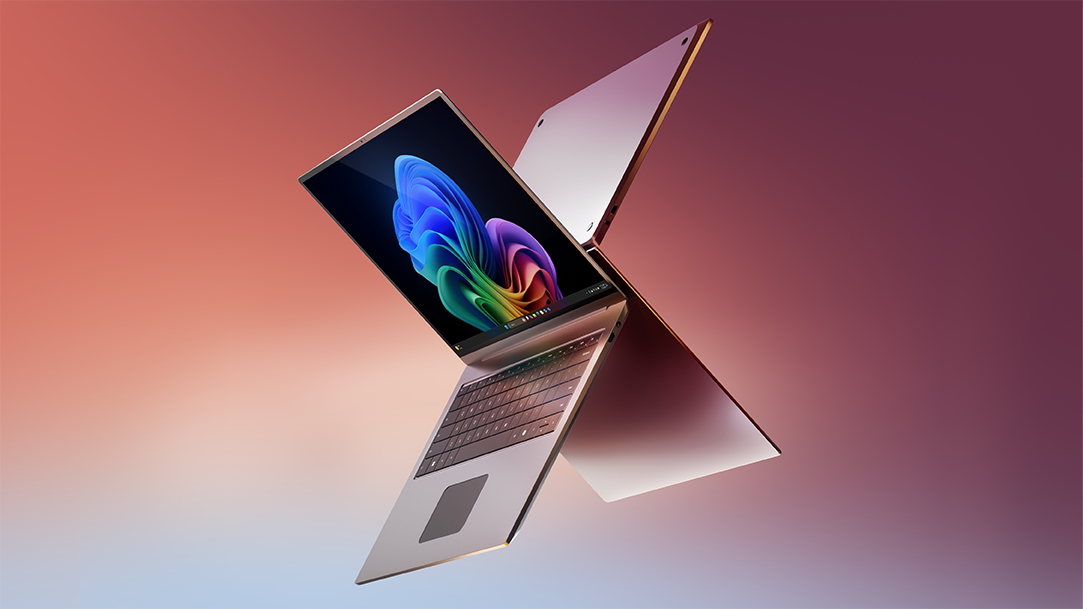
3 MIN READ
From unboxing to AI-powered features—get started fast with your new Windows 11 laptop.

3 MIN READ
From first boot to daily use, here’s how to make a home laptop work smarter.

3 MIN READ
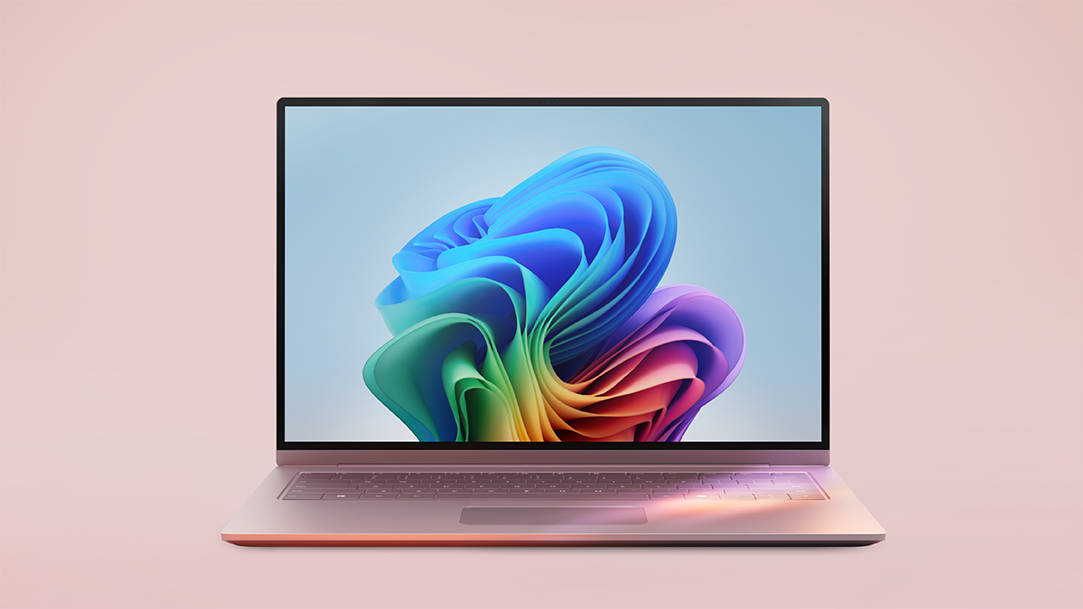
From note-taking to video editing, explore essential Windows apps for student productivity.
3 MIN READ
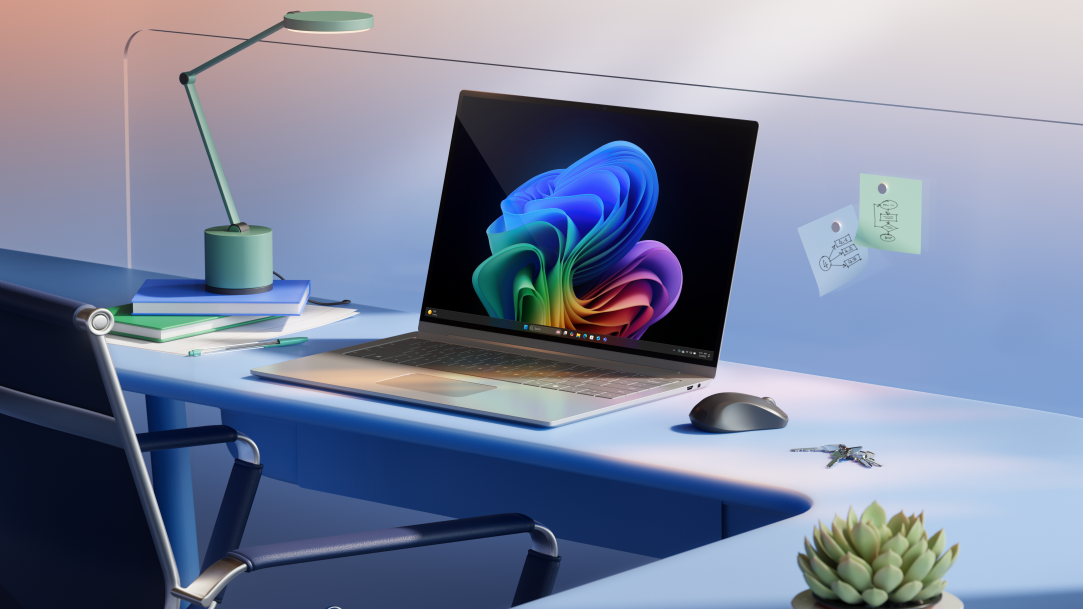
Learn how Copilot+ PCs help adult students balance work, life, and school.
2 MIN READ
Windows 11 introduces Agent in Settings and Copilot Vision to streamline everday PC tasks.

2 MIN READ
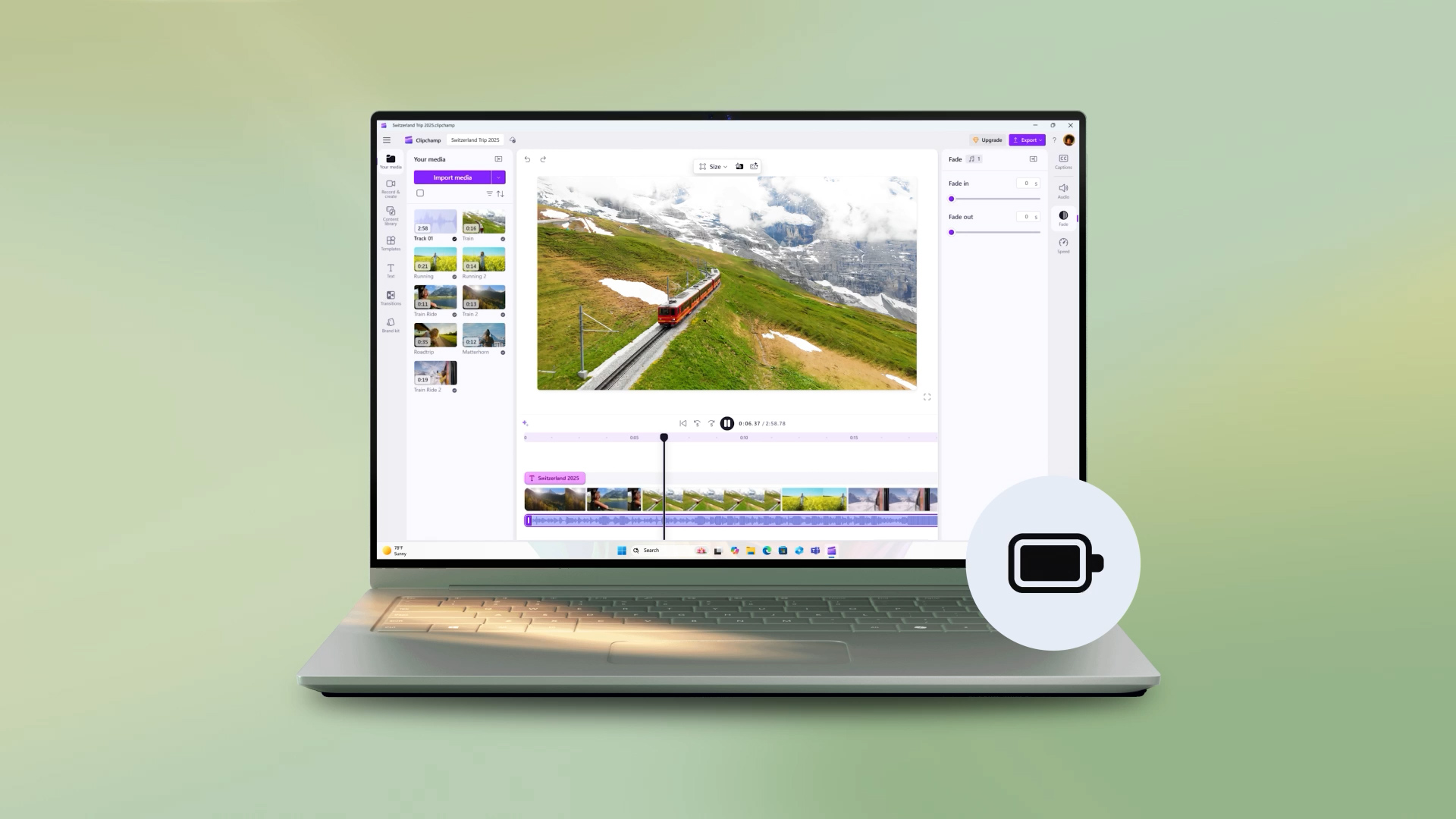
Learn how to instantly change lighting direction, color, and intensity with Relight on Copilot+ PCs.
3 MIN READ
Prepare for the new school year with our tech guide.

3 MIN READ
Explore back-to-school tools built for speed, focus, and productivity.

3 MIN READ
Big tools for little learners—discover how to make homework time a breeze.
3 MIN READ
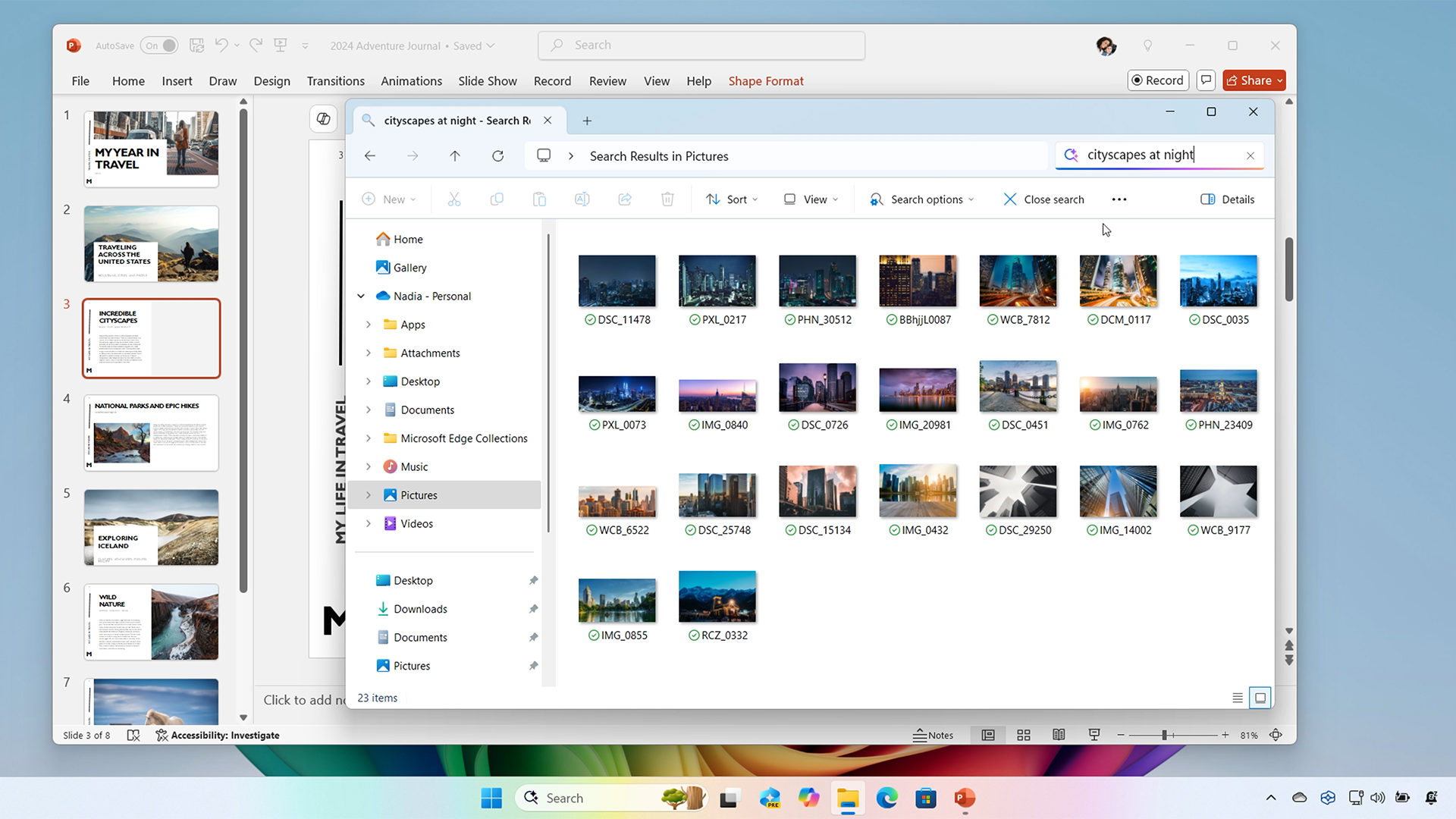
Describe it and discover it—improved Windows search finds your files, photos, and more.

3 MIN READ
Smarter tools, faster learning—discover how Copilot+ PCs fuel digital education.

3 MIN READ
See why these AI-powered PCs are getting straight A’s from students and parents alike.
4 MIN READ
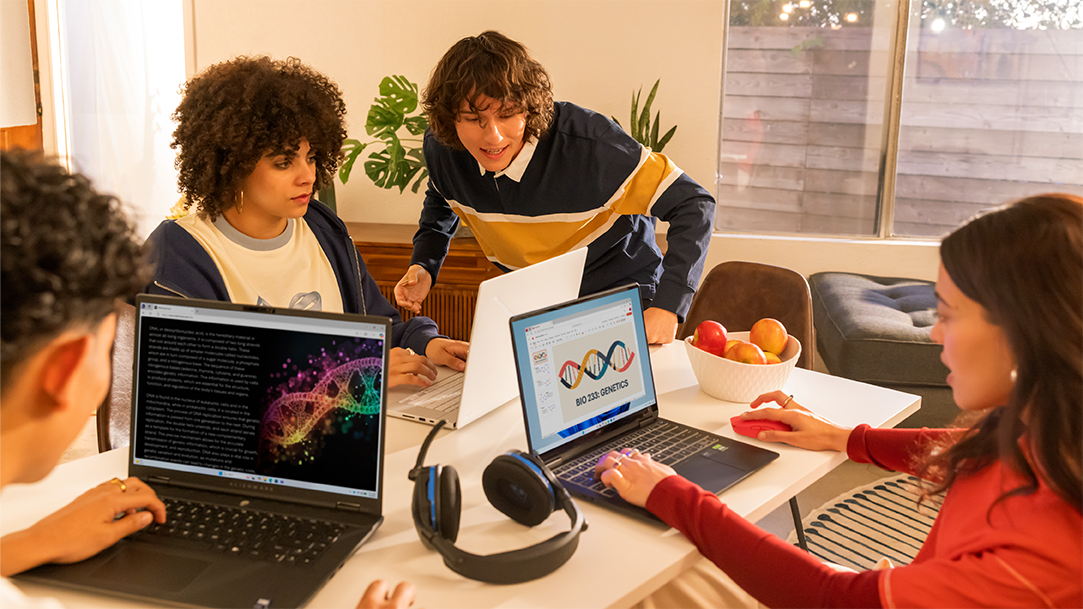
See how Copilot+ PCs use built-in AI to boost creativity, gaming, and multitasking.
4 MIN READ
From esports to algebra, Copilot+ PCs are changing how high school students learn.

4 MIN READ
Discover some of the best productivity apps for work, creativity, and AI-powered efficiency.

3 MIN READ
Learn how Windows 11 Smart App Control complements traditional antivirus software to shield PCs from threats.
3 MIN READ
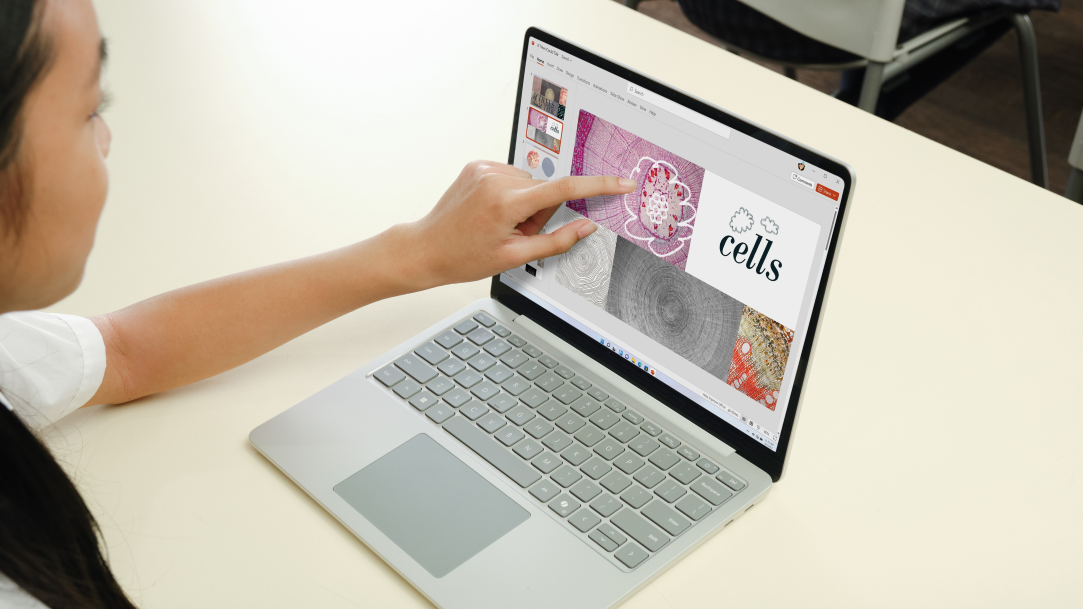
From simple swipes to advanced multitasking, unlock the power of touch commands to improve productivity.

4 MIN READ
Create scrapbook pages from screenshots to preserve memories and celebrate special occasions.

3 MIN READ
A step-by-step guide to using Microsoft Phone Link to sync your phone with your Windows PC.

3 MIN READ
Learn how to take full control of your PC—no hands required.

4 MIN READ
See how powerful features like Snipping Tool and Generative erase simplify web design and content creation.
4 MIN READ
Learn how to make the transition from Windows 10 to 11 and find out what’s in store for Windows 11.

3 MIN READ
Discover how the latest Windows features take productivity, creativity, and security to new heights.

3 MIN READ
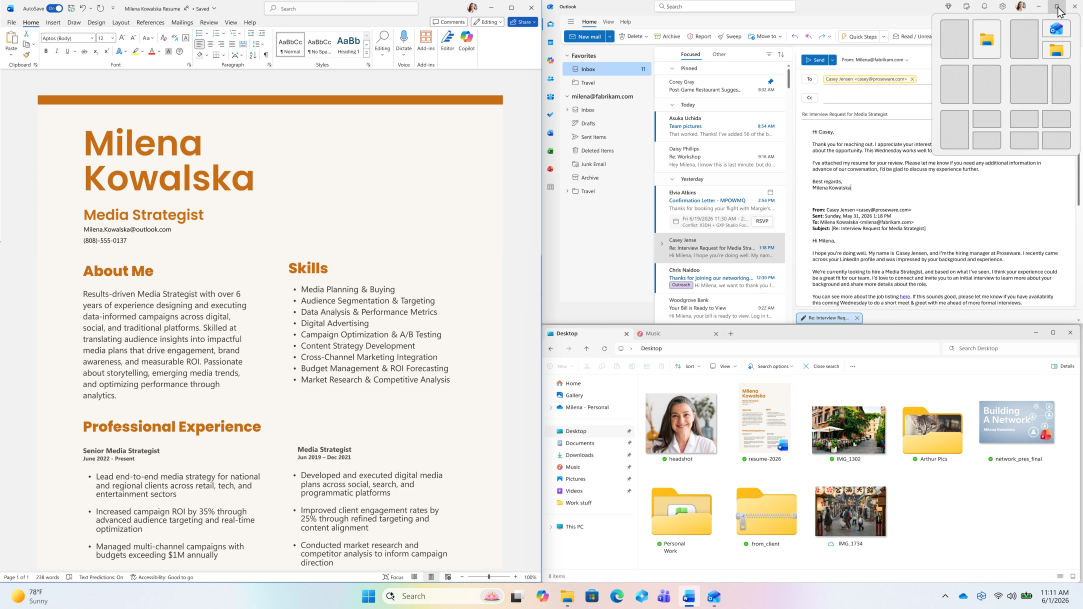
Understand how TPM works to enhance security and protect sensitive information in Windows 11.
3 MIN READ
Essential tips and tricks for creating a more efficient online workspace.

3 MIN READ
Unlock features to boost productivity, enhance customization, and improve your overall experience.

3 MIN READ
Follow these essential steps before Windows 10 support ends.

3 MIN READ
Get tips and tricks for capturing, editing, and sharing screenshots with Snipping Tool.

3 MIN READ
The hidden dangers of an outdated operating system, and what you can do to protect your device.

3 MIN READ
Learn how to remove backgrounds and correct mistakes with Generative Erase in Windows 11.

3 MIN READ
Be your own DJ. Learn how to make playlists that match your mood.
3 MIN READ
Want more calm in your work environment? Windows 11 could be your answer.

3 MIN READ
A how to guide to adding autocaptions, audio descriptions, and text to speech for accessible video content.

3 MIN READ
Learn the truth behind common misconceptions and discover the capabilities of Microsoft’s latest operating system.

3 MIN READ
Explore lesser-known shortcuts that enhance your productivity and streamline file management.

3 MIN READ
Want better sleep? Discover how Windows features can create a sleep-friendly environment.

3 MIN READ
Create personalized Valentine’s cards and gifts using Cocreator in Windows.
3 MIN READ
Learn about the exciting features of Microsoft Windows 11 and upgrade today.

3 MIN READ
Simplify system management, app navigation, and feature access with these quick keys.

3 MIN READ
Customize your workspace, integrate cloud tools, and optimize performacne to boost productivity and creativity.

3 MIN READ
Exclusive to Windows 11 is Smart App Control. It provides a layer of security by only permitting apps with good reputations to be installed.

3 MIN READ
Improve your efficiency across the board with productivity features in Windows 11.
3 MIN READ
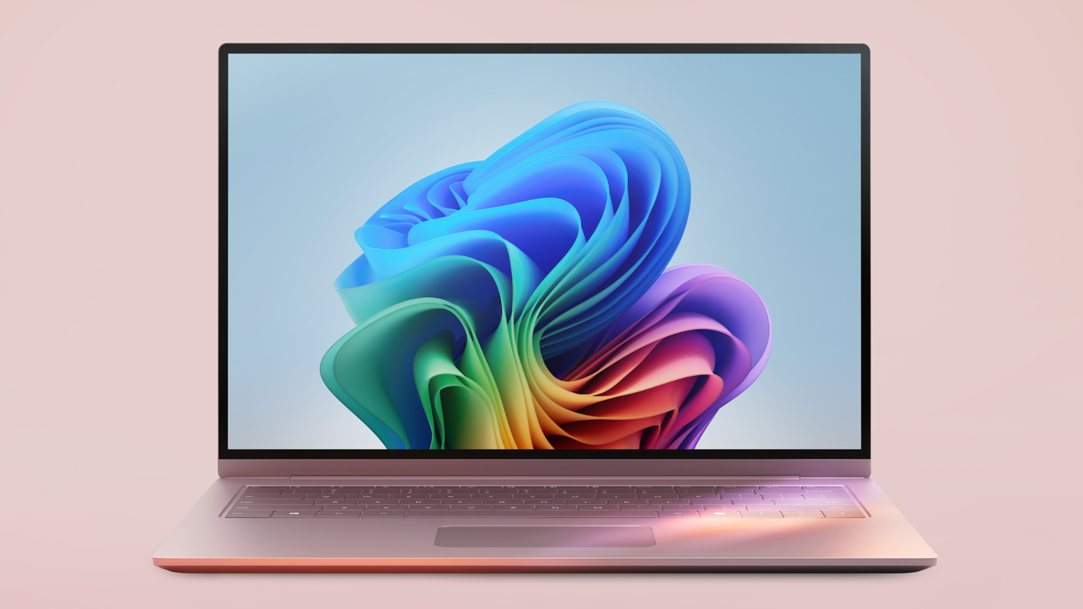
Learn about the history of the PC and how the history is integrated into today’s Windows PCs and tablets.
3 MIN READ
Unlock AI-powered productivity with Copilot+ PCs. Personalize your PC for smarter, faster performance.
3 MIN READ
Learn how to back up your folders to your OneDrive account and keep your files protected and recoverable.
3 MIN READ
Discover how Windows apps can transform mundane household chores into enjoyable activities.

3 MIN READ
Learn how to design and personalize your digital calendar using calendar templates and features.
3 MIN READ
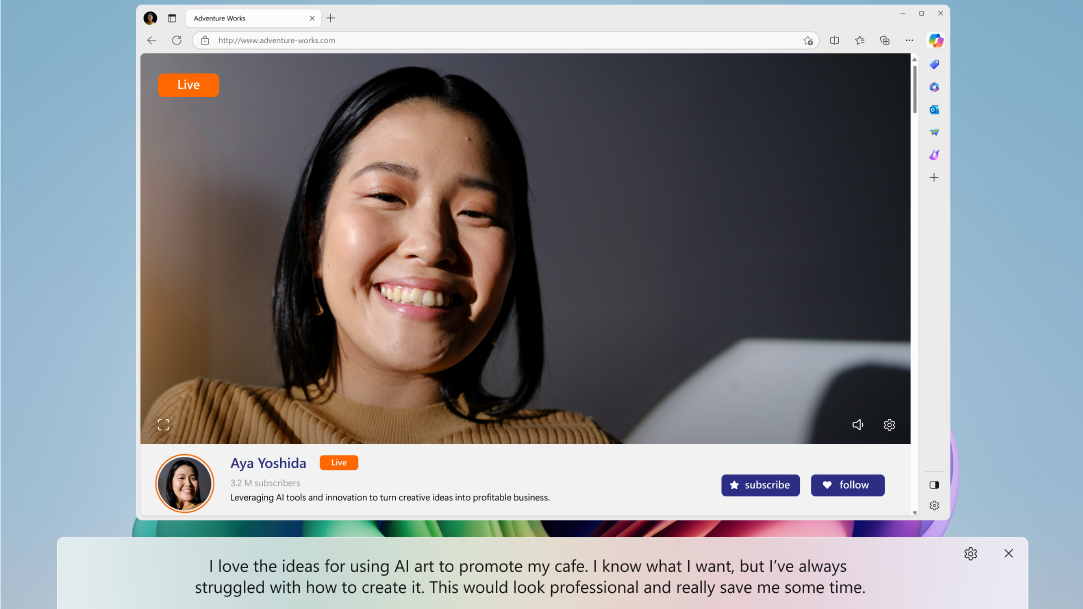
Discover how Copilot+ PC Live Captions in Windows 11 boosts accessibility by translating audio into English captions.
3 MIN READ
Find perfect gift with Windows widgets, offering ideas and inspiration for your loved ones.

2 MIN READ
Learn how CPU, GPU, and NPU enhance Windows devices for multitasking, graphics, and AI.


2 MIN READ
Learn essential tips to protect your personal information, avoid scams, and enhance cybersecurity.

2 MIN READ
Unlock the power of a Copilot+ PC with key features to enhance productivity, creativity, and quality.

2 MIN READ
Discover how presence sensing in Windows enhances security with automatic screen locking and adjusts display settings for a personalized, secure experience.
2 MIN READ
Discover how Windows Passkey defends against phishing, credential stuffing, and brute force attacks.

2 MIN READ
Discover how to make productivity truly portable with Windows on mobile.

2 MIN READ
Learn how to create fun, shareable images in just a few simple steps with the Snipping tool.

2 MIN READ
Learn how Microsoft Windows can be customized to meet the specific needs of elderly users.
2 MIN READ
Learn the best practices to secure your home network with encryption, Windows Defender, and more.
2 MIN READ
Knowing how to upload and download files securely is key to protecting yourself against malware.
2 MIN READ
Keep your computer screen awake during periods of inactivity by using PowerToys Awake.
2 MIN READ
Study with greater ease using assistive technology like Narrator and live captioning.
2 MIN READ
Get help paying attention in class with these productivity tools.

2 MIN READ
Increase your productivity by learning how to pin your important windows and apps.

2 MIN READ
Study efficiently for exams with these tried-and-true methods.
2 MIN READ
Learn how to use the Snipping Tool in innovative ways.

2 MIN READ
Thanks to Windows 11, you can securely share your files and sensitive information without worry.

2 MIN READ
Use dictation software to your advantage on your Windows device.
2 MIN READ
Access and decrypt your files with ease using these steps.
2 MIN READ
Keep your desktop organized by creating folders in Windows.

2 MIN READ
Learn the difference between a screen reader and text-to-speech features.
2 MIN READ
Take control of your laptop touchpad by customizing your touchpad gestures.

2 MIN READ
Safeguard your files and folders with the added protection of encryption.

2 MIN READ
Simplify your Windows 11 Start menu by grouping apps into folders.

2 MIN READ
Clear all or part of your cloud storage, and learn to manage files in a way that works for you.
2 MIN READ
Enjoy peace of mind and extra security when you back up your files with the help of Windows 11 built-in features.

2 MIN READ
Never forget a task again with these tools for setting reminders.

2 MIN READ
Reread a beloved novel or find a new favorite by reading books digitally.
2 MIN READ
From multitasking on calls to optimizing research, Snap layouts make screen time more productive.
2 MIN READ
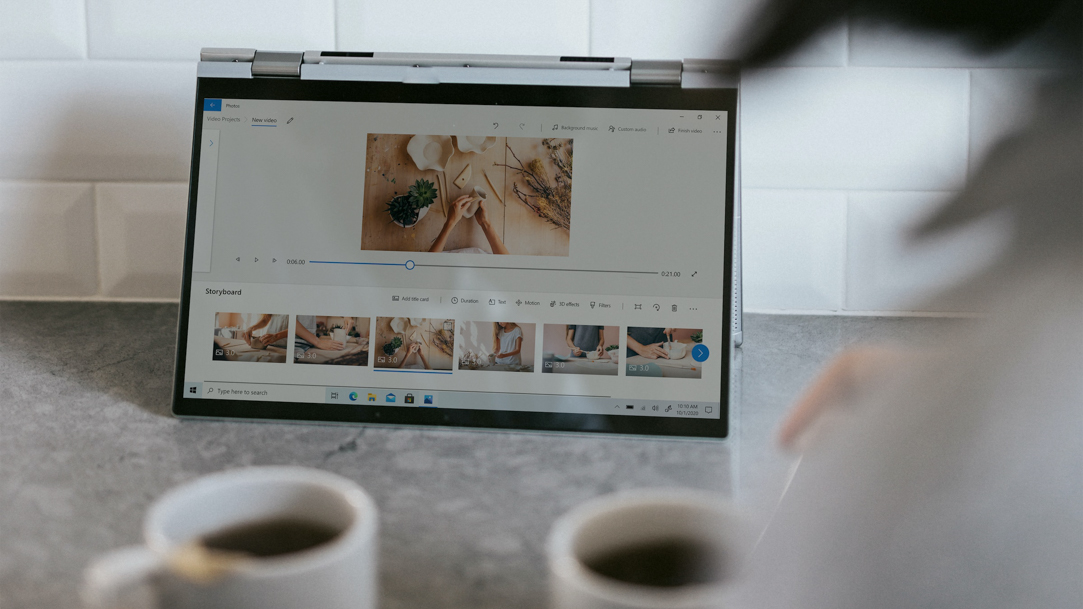
Using the updated Photos app in Windows 11 can make it easy to organize your photos.
2 MIN READ
Easily check the weather using these Windows 11 tools.

2 MIN READ
From assistive technology for reading to speech recognition, Windows 11 was designed with accessibility in mind.

2 MIN READ
Pick the caption you want with Windows 11 hearing accessibility features.

2 MIN READ
Give your eyes a break by learning when to turn on Dark mode.

2 MIN READ
Try Clipchamp today to unlock your creative potential and tell your story, your way.

2 MIN READ
Reduce eyestrain while you stare at a computer screen for long periods of time.
2 MIN READ
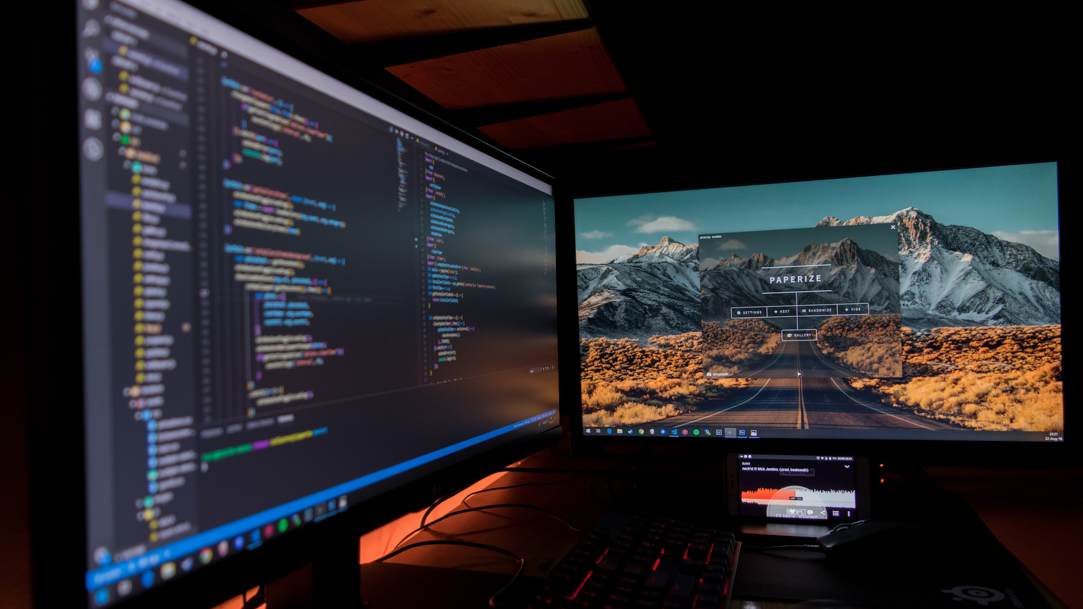
Learn how, when, and why to dock and undock with these tips.
2 MIN READ
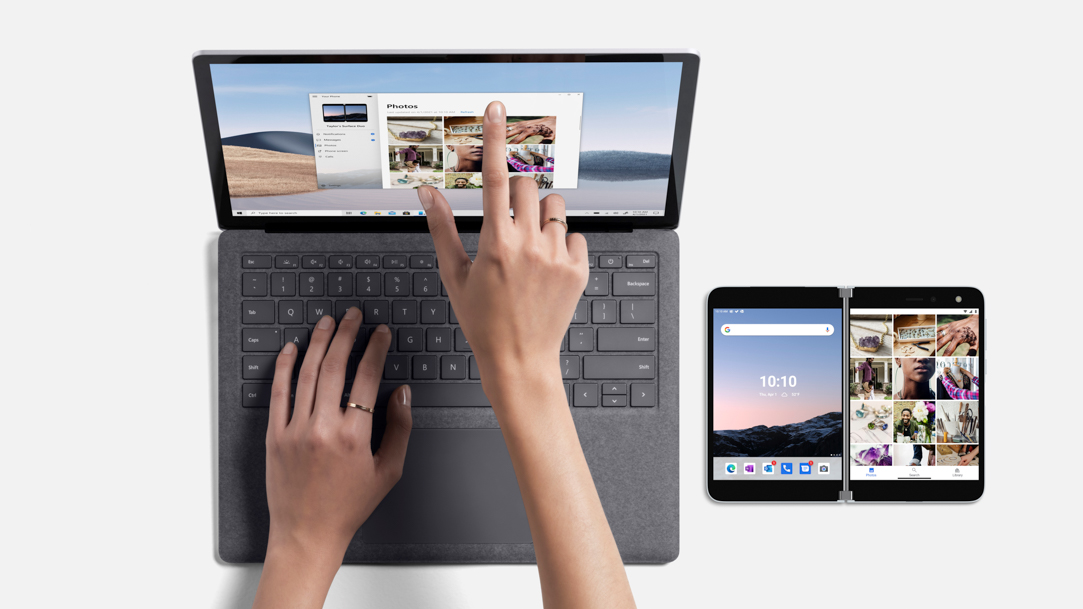
Share special moments with friends and family with these tips on transferring videos from your phone to your computer.
2 MIN READ
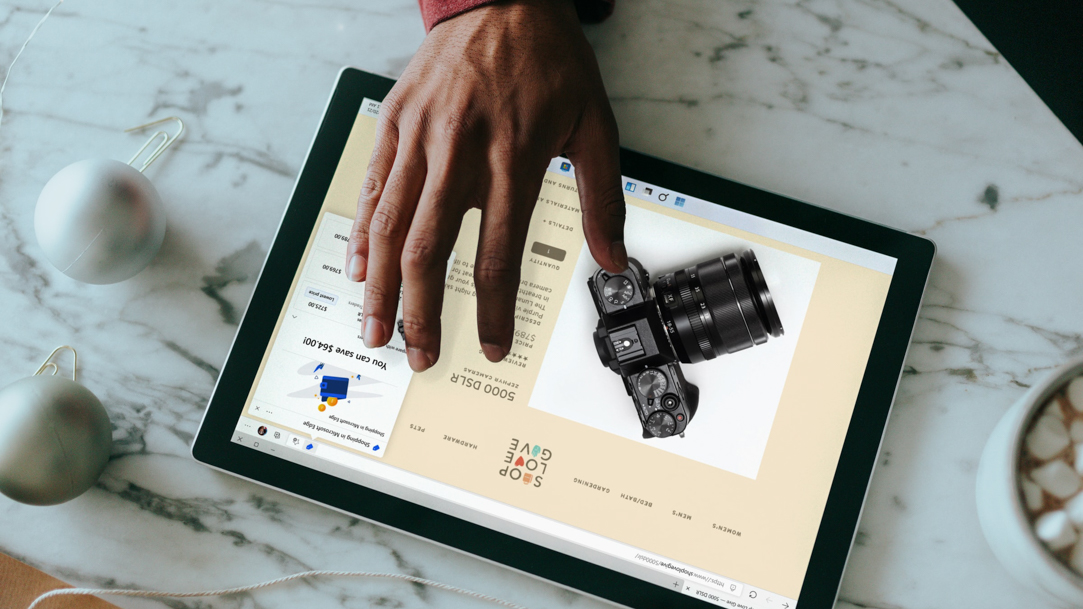
Calibrate the colors on your screen to enhance your online shopping experience.
2 MIN READ
Take advantage of these Windows 11 keyboard shortcuts to accomplish tasks quickly.
2 MIN READ
Make your desktop match your personality with these tips on staying aesthetic.
2 MIN READ
Download all your favorite apps from the new Microsoft Store.
2 MIN READ
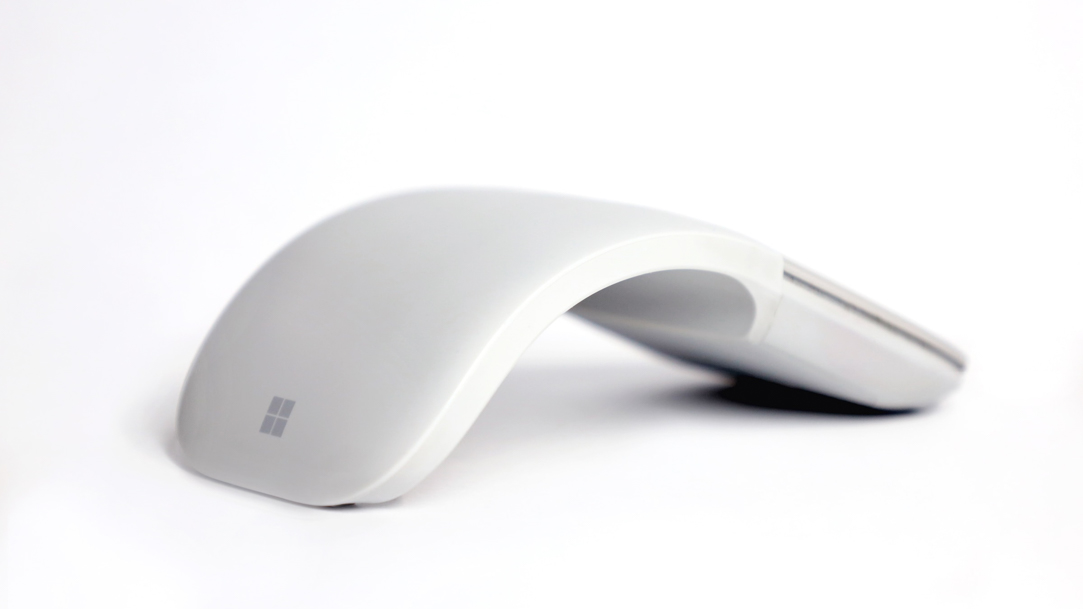
Create your own installation media using a DVD or a flash drive with Windows Media Creation Tool.

2 MIN READ
Save space on your desk and use peripherals while your laptop isn't open.

2 MIN READ
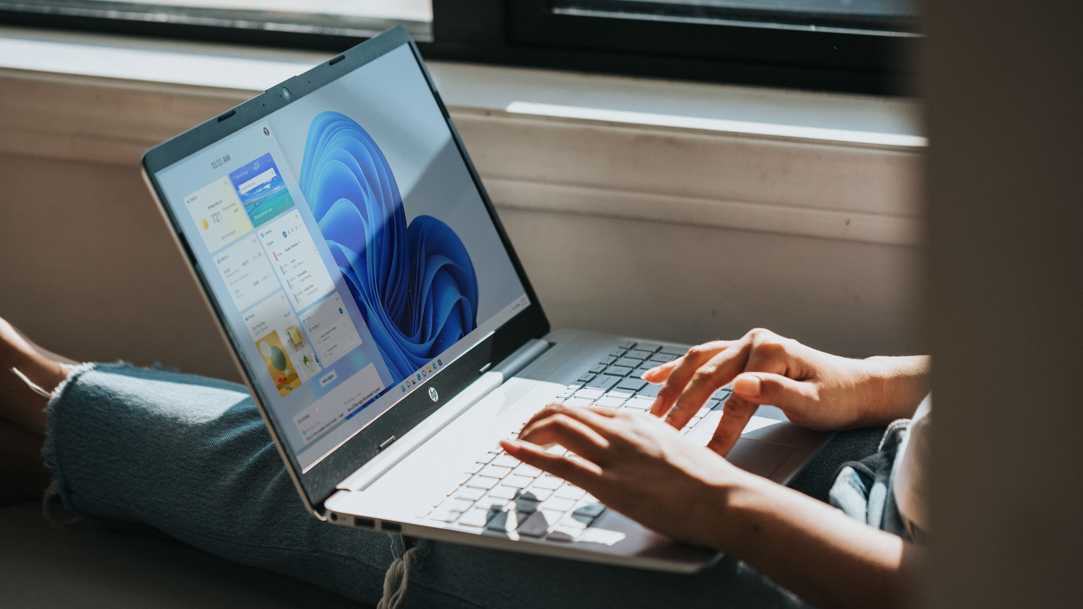
Learn about your laptop's hotspot settings and get online, no matter where you are.
2 MIN READ
Keep your work and play separate with multiple desktops.

2 MIN READ
Turn your speech into text instantly with the voice typing feature in Windows 11.

2 MIN READ
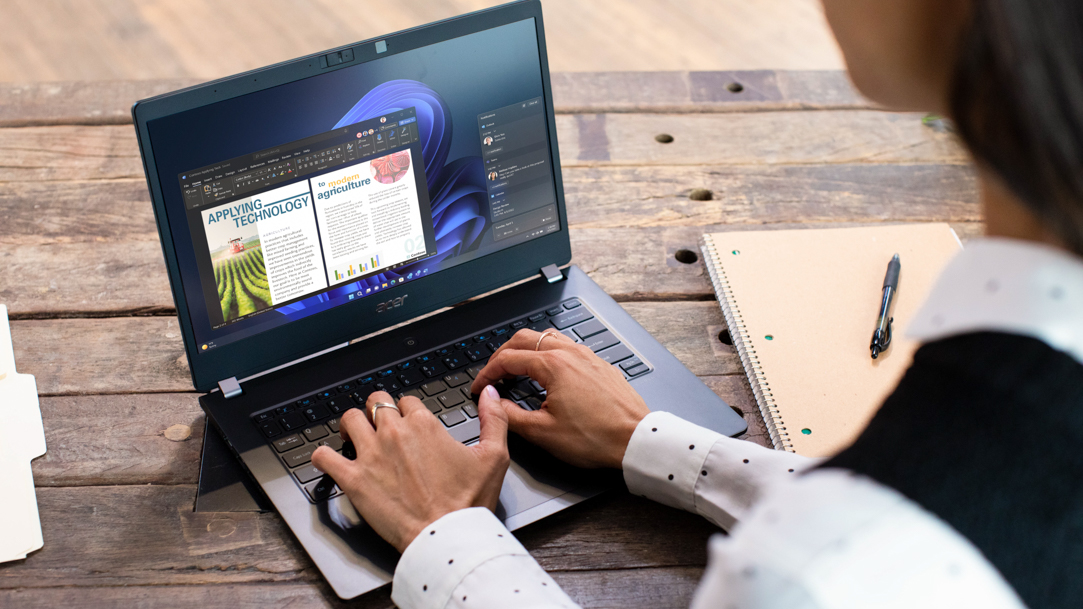
Boost your productivity by selecting the apps that you want to open at startup.
2 MIN READ
Learn how you can remap your keys on a Windows 11 device.

2 MIN READ
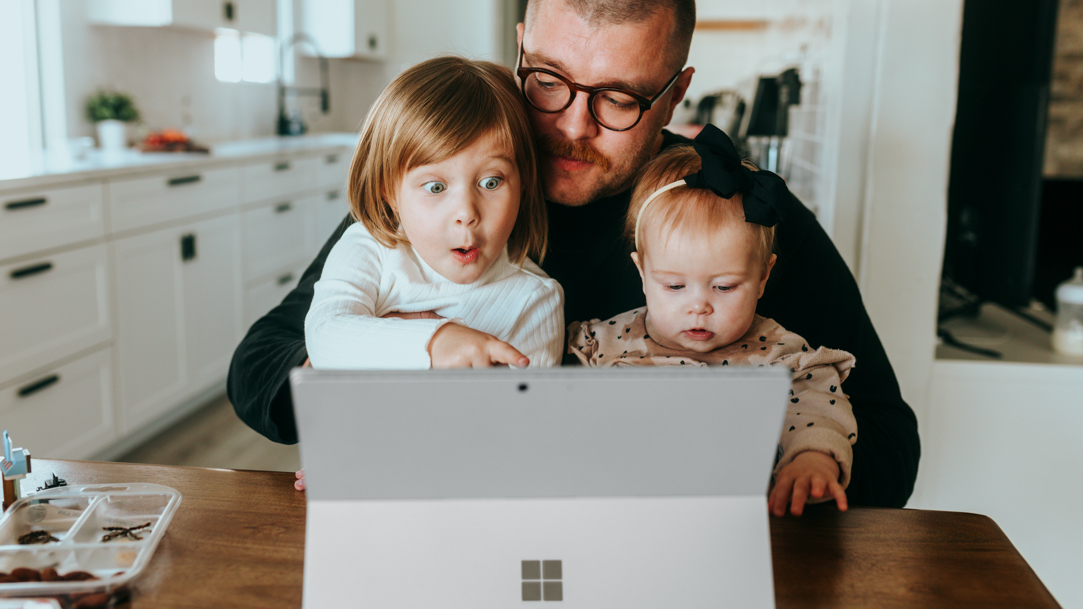
Screenshot taking methods that help you save important information to your PC.
2 MIN READ
Share photo albums online with your family using Microsoft Windows apps.
2 MIN READ
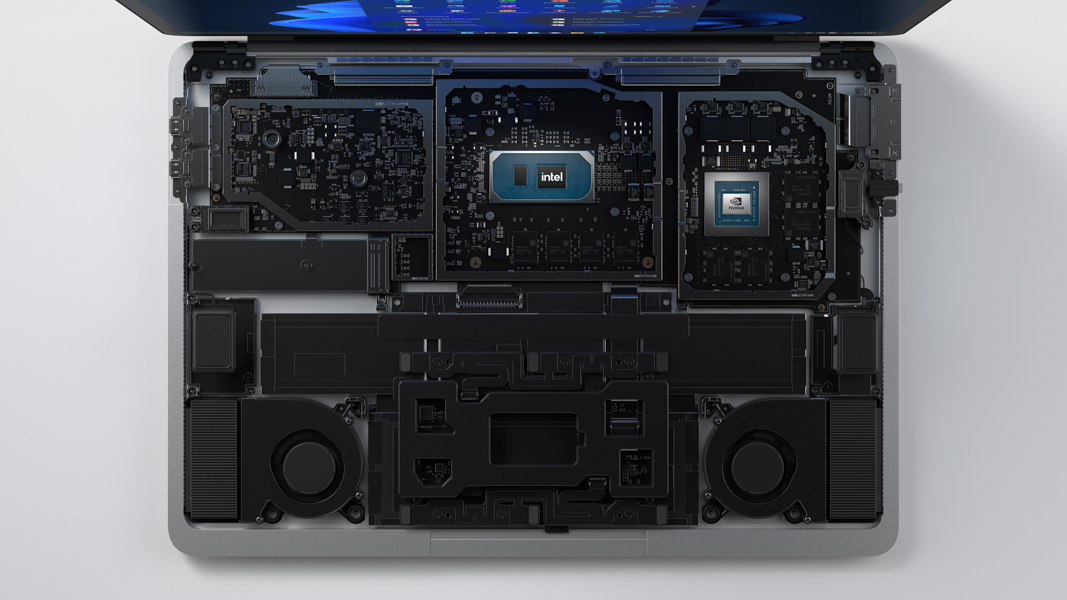
Get to know the purpose and value of your computer’s GPU.

2 MIN READ
Find the fastest, easiest way to share video files wherever you are.
2 MIN READ
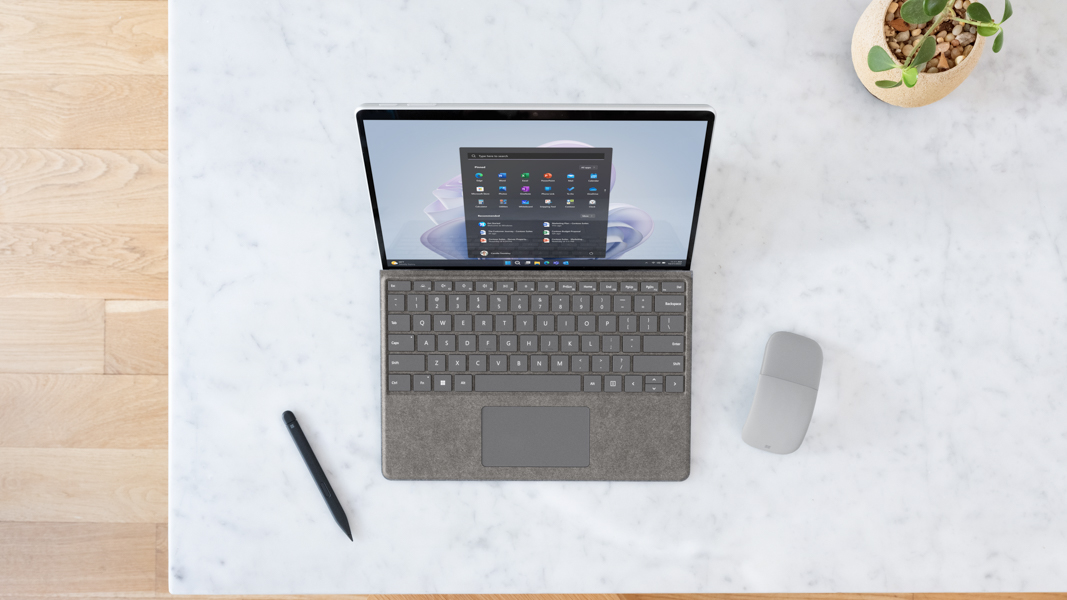
Have your new computer up and running in ways that work for you as soon as possible.
2 MIN READ
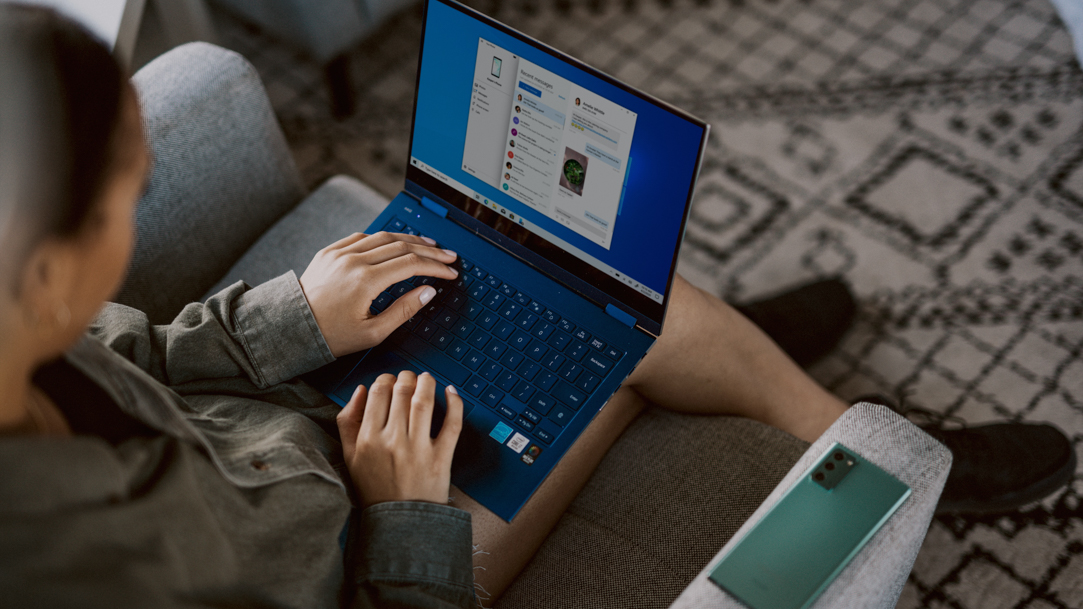
Find the features to help with specific vision, hearing, or mobility needs.

2 MIN READ
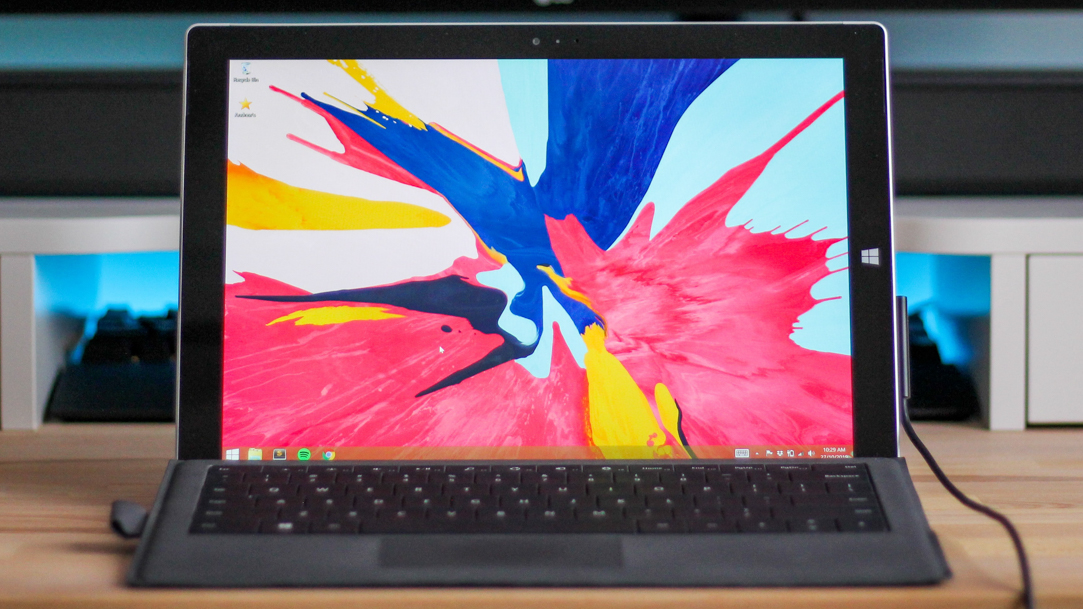
Find out just how easy Windows 11 makes it to capture anything and everything that’s happening on your screen.
2 MIN READ
Learn how Windows Remote Desktop allows you to access your PC from anywhere.
2 MIN READ
A simple way to make life a little easier is to sync Windows 11 across your devices.
Follow us: